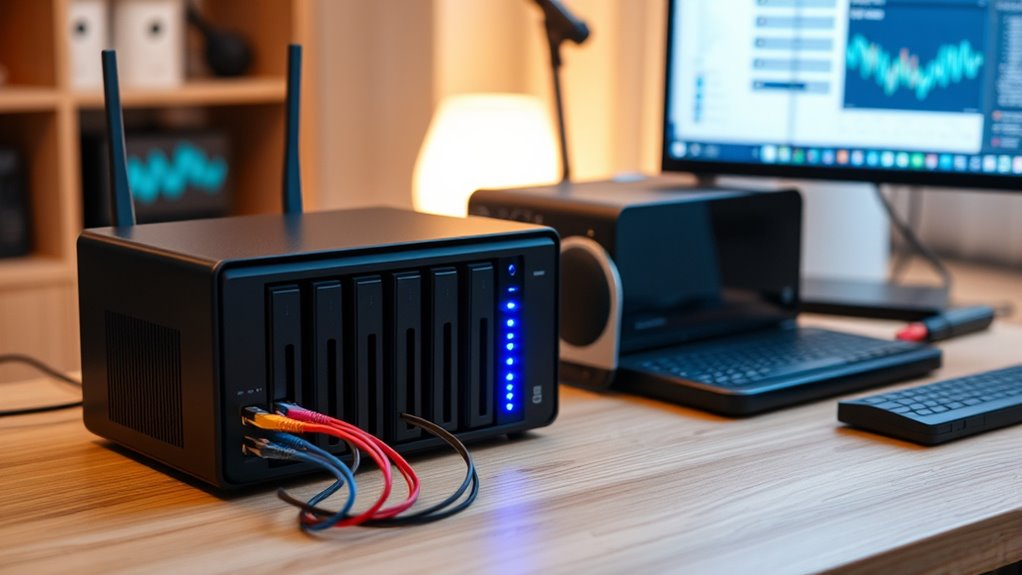

Setting up a home server for media and backups involves choosing the right hardware, like a dedicated NAS or desktop with ample RAM and storage, and configuring network security. You should segment your network for added protection and use strong passwords, encryption, and regular updates to keep your data safe. Incorporating a UPS and redundancy ensures reliability. If you want to understand how to optimize your setup and keep it secure, you’ll find helpful tips closer to the end.
Key Takeaways
- Choose hardware with sufficient storage, RAM, and processing power for media streaming and backup needs.
- Segment your network to isolate the server, enhancing security and preventing threats from spreading.
- Implement strong security measures like WPA3 encryption, complex passwords, and two-factor authentication.
- Use RAID configurations or spare drives to ensure data redundancy and protect against drive failures.
- Regularly update server software and maintain organized backups to ensure safety and reliable media access.
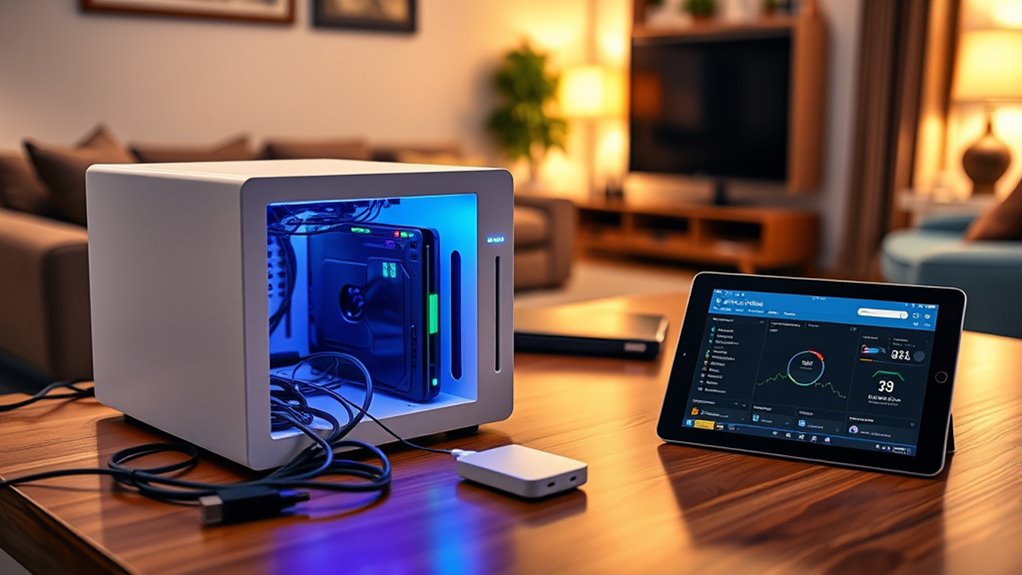
Ever wondered how to centralize your digital life at home? Setting up a home server is an excellent way to organize your media, backups, and files in one accessible location. But before diving in, it’s essential to understand the fundamentals, especially around network security and hardware selection. These elements determine how smoothly your server runs and how safe your data remains.
When it comes to network security, you need to prioritize safeguarding your server against unauthorized access and potential threats. Start by configuring your router’s firewall settings and enabling encryption protocols like WPA3 for your Wi-Fi network. It’s also wise to set up a strong, unique password for your server’s admin account and enable two-factor authentication if available. Regularly updating your server’s software ensures you patch vulnerabilities before malicious actors can exploit them. Consider segmenting your network by creating a separate subnet for your server, which adds an extra layer of protection and prevents potential breaches from spreading to other devices. These security measures are essential because a compromised server could expose sensitive personal data or disrupt your home network.
Hardware selection is another critical step that influences your server’s performance and reliability. You want to choose hardware that strikes a balance between cost, capacity, and future-proofing. For basic media streaming and backups, a modest setup with a dedicated NAS (Network-Attached Storage) device or a repurposed desktop with ample RAM and a fast processor works well. If you plan to stream high-definition videos or run multiple services simultaneously, opt for a server with multiple cores and sufficient storage options like SSDs for speed and HDDs for capacity. Don’t forget about redundancy—invest in drives with RAID capabilities or keep spare drives on hand to replace failed ones quickly. Power supply quality is also important; a reliable, possibly uninterruptible power supply (UPS), can protect your server from outages and data corruption. Additionally, understanding mindfulness principles can help you stay organized and maintain a calm approach during setup, reducing errors and stress. Remember, hardware selection isn’t just about specs; it’s about aligning your setup with your current needs and potential growth.
Frequently Asked Questions
How Much Storage Capacity Do I Need for a Home Server?
You’ll want at least 4 to 8 terabytes of storage for your home server, but it depends on your needs. Consider your hard drive options like HDDs or SSDs for speed and capacity. For effective storage planning, think about current media and backup sizes, then add extra space for growth. This way, you avoid running out of room and keep your media and backups safe and accessible.
Can I Set up Remote Access to My Home Server?
Yes, you can set up remote access to your home server, turning it into a digital lighthouse guiding you through the vast sea of data. Use a VPN for security, acting as an encrypted bridge that keeps your connection safe from prying eyes. By configuring your network and firewall, you make certain of smooth sailing, allowing you to access your files securely from anywhere, like a trusted companion always by your side.
What Security Measures Should I Implement for My Server?
You should implement strong security measures like configuring your firewall to restrict unauthorized access and regularly updating it. Use complex, unique passwords and manage them with a reliable password manager to prevent breaches. Enable two-factor authentication where possible, keep your server software up-to-date, and monitor access logs for suspicious activity. These steps help protect your server from threats and guarantee your media and backups stay safe.
How Energy-Efficient Are Home Servers?
Like a trusty steed in a modern barn, your home server is surprisingly energy-efficient. It typically consumes less power than a standard desktop, making it an eco-friendly choice. With smart settings and energy-saving modes, you can further reduce power consumption and maximize energy savings. Overall, home servers are designed to balance performance with low energy use, helping you save on electricity bills while keeping your media and backups safe.
Is It Possible to Upgrade Hardware Components Later?
Yes, you can upgrade hardware components later, thanks to the hardware flexibility of most home servers. They often support upgrade options like additional RAM, larger storage drives, or newer processors, allowing you to enhance performance over time. Just guarantee your server’s motherboard and power supply can handle the new components. Planning for future upgrades helps you extend your server’s lifespan and adapt to your growing media and backup needs.
Conclusion
Setting up a home server might seem intimidating at first, but once you get the hang of it, it’s a game-changer for managing your media and backups. Remember, Rome wasn’t built in a day, so take it step by step. With patience and some tinkering, you’ll have a reliable hub that keeps your data safe and accessible. Stick with it—the payoff is worth it, and you’ll wonder how you ever managed without it.