To secure your home network, start by changing your router’s default admin password and enabling WPA3 or WPA2 encryption to keep your Wi-Fi safe. Keep your router’s firmware up to date to patch vulnerabilities. Disable remote management to prevent outsiders from accessing your settings, and set up a guest network to isolate visitors. Change your Wi-Fi name, hide the network, and activate your firewall for extra protection. If you continue exploring, you’ll discover even more ways to stay secure.
Key Takeaways
- Change default admin passwords and enable WPA3 or WPA2 encryption for secure Wi-Fi access.
- Disable remote management to prevent external control of your router settings.
- Set up a separate guest network with strong credentials to isolate visitors from main devices.
- Activate the router’s firewall and monitor network activity for suspicious or unauthorized access.
- Regularly update router firmware and security settings to patch vulnerabilities and enhance protection.
home Wi-Fi router with WPA3 encryption
As an affiliate, we earn on qualifying purchases.
As an affiliate, we earn on qualifying purchases.
Change Your Router’s Default Admin Password
Have you ever thought about how easily someone could access your network if your router still has its default admin password? Default credentials are widely known and often left unchanged, making it simple for hackers to gain entry. Changing your router password is a vital first step in securing your home network. Visit your router’s settings page and replace the default credentials with a strong, unique password. Avoid common phrases or easily guessable information; instead, use a mix of upper and lowercase letters, numbers, and symbols. Doing so prevents unauthorized access and protects your devices and personal data. Remember, default credentials are a major vulnerability, so always update your router password as soon as you set up your network. Vetted
Enable WPA3 or WPA2 Encryption to Secure Your Wi-Fi
To protect your Wi-Fi, you need to choose the right encryption standard and update your router’s settings accordingly. WPA3 is the newest, most secure option, but if your device doesn’t support it, WPA2 is still a solid choice. Make sure you enable these settings correctly to keep unauthorized users out of your network. Understanding wireless security protocols can help you make informed decisions about your network’s safety. Additionally, regularly updating your router’s firmware can address security vulnerabilities and improve overall protection. Being aware of encryption standards can help you better evaluate the security features of your network. Familiarizing yourself with Floating on Water concepts can also offer insights into creating a more resilient and secure network environment. Staying informed about network security practices can further enhance your Wi-Fi protection.
Choosing the Right Standard
Choosing the right Wi-Fi security standard is essential for protecting your home network. Wireless standards like WPA2 and WPA3 use different encryption protocols to safeguard your data. WPA3 is the newest and most secure, offering stronger encryption and better protection against hacking attempts. If your router supports WPA3, it’s the best choice to guarantee your network stays safe. However, some devices may only work with WPA2, so compatibility matters. In general, opting for the latest standard helps minimize vulnerabilities. Always check your device and router capabilities before making a switch. By selecting the appropriate wireless standard, you’ll dramatically improve your network’s security, keeping your personal information and connected devices protected from cyber threats.
Updating Router Settings
Are you aware of how easy it is to boost your home network’s security by updating your router settings? Enabling WPA3 or WPA2 encryption ensures your Wi-Fi stays protected from unauthorized access. First, choose a strong, complex password to improve password complexity and prevent easy guessing. Regularly check and follow your router’s firmware update schedule to patch vulnerabilities and enhance security features. Updating firmware keeps your device resistant to new threats and exploits. Here’s a quick overview:
| Step | Action | Benefit |
|---|---|---|
| Enable WPA3/WPA2 | Access router settings and select encryption type | Stronger Wi-Fi security |
| Create strong password | Use a mix of characters, length, and complexity | Prevent unauthorized access |
| Firmware updates | Keep firmware current through scheduled updates | Fix vulnerabilities, improve security |
Keep Your Router’s Firmware Up to Date
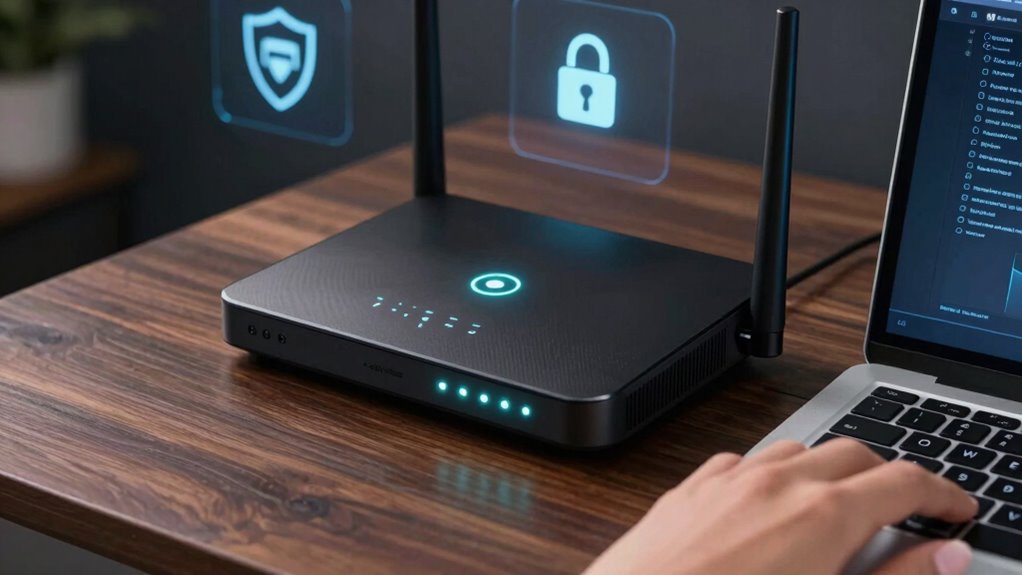
Keeping your router’s firmware up to date is one of the simplest yet most effective ways to protect your home network. Firmware updates ensure your router has the latest security patches, closing vulnerabilities that hackers might exploit. Regularly checking for updates and installing them promptly keeps your device protected against emerging threats. Many routers can automatically download firmware updates, so enable this feature if available. If not, visit your router manufacturer’s website periodically to download the latest firmware. Don’t ignore firmware updates; outdated firmware can leave your network exposed. Staying current with these updates is a proactive step toward maintaining a secure home environment and reducing the risk of unauthorized access. Firmware security is essential to prevent potential breaches and safeguard your connected devices. Additionally, understanding network vulnerabilities can help you identify other weak points in your system that require attention, further strengthening your overall home network security. Regularly reviewing your router settings can also reveal additional security options to enhance your protection.
Disable Remote Management on Your Home Router
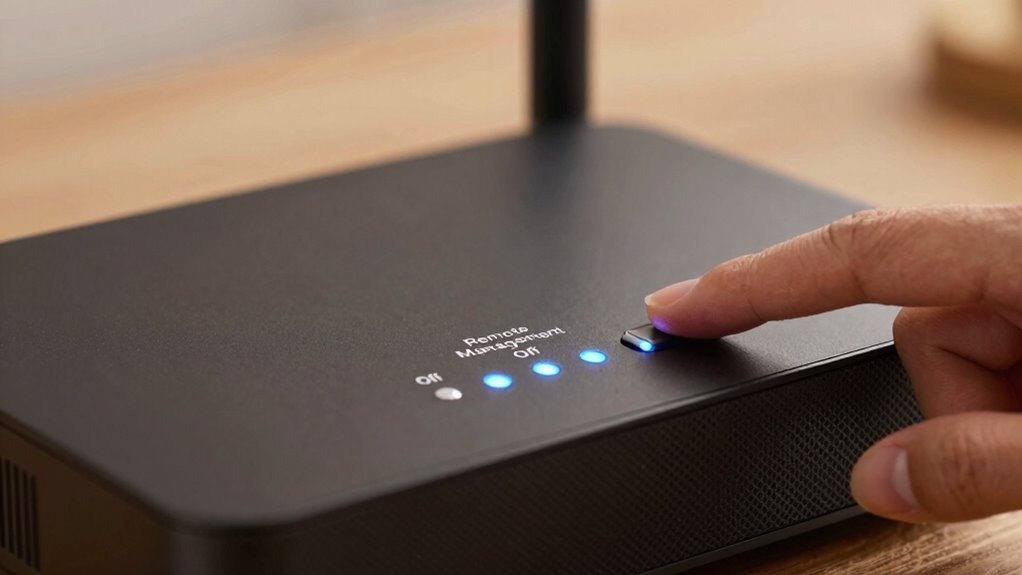
Have you ever considered who can access your router remotely? Enabling remote access for router management can pose security risks, allowing unauthorized users to control your network settings. To protect your home network, disable remote management. This prevents outsiders from accessing your router’s admin interface over the internet. Regularly reviewing your network security settings can help identify and address potential vulnerabilities before they are exploited. You should:
Enabling remote management risks security; disable it to keep your home network safe from unauthorized access.
- Log into your router’s admin panel
- Locate the remote management settings
- Turn off or disable remote access options
- Save your changes immediately
Disabling remote management ensures only devices within your local network can handle router settings. This simple step reduces vulnerabilities, making it harder for hackers to exploit your router’s management interface and helps keep your home network secure. Understanding network security principles is essential for maintaining a safe digital environment. Additionally, regularly updating your router’s firmware is a key security measure that can fix vulnerabilities and enhance protection. Keeping your network firewall settings optimized further adds an extra layer of security against potential threats. Implementing network segmentation can also limit the impact of potential breaches and improve overall security.
Set Up a Guest Network to Isolate Visitors
Setting up a guest network helps keep your main devices secure by creating a separate Wi-Fi connection for visitors. You can manage guest access permissions to control what they can see and do online. This way, you protect your personal data while still offering internet access to your guests. Implementing connected appliances within your network can also enhance your smart kitchen experience by ensuring they operate securely without risking your main network. Additionally, changing default passwords on your router and firmware updates can significantly bolster your overall network security, which is especially important given the increasing variety of security systems and devices available today.
Creating Separate Wi-Fi Networks
To better protect your main network from potential threats, creating a separate Wi-Fi network for guests is a smart move. This approach enhances network segmentation and device isolation, ensuring visitors can access the internet without risking your primary devices. By setting up a guest network, you limit their access to sensitive data and reduce potential attack vectors. Additionally, choosing top-rated colognes can help you make a good impression while maintaining your personal privacy and security. You should consider:
- Assigning a unique SSID and password for your guest network
- Disabling access to your main network’s devices and shared resources
- Regularly updating your guest network credentials
- Monitoring connected devices for any suspicious activity
Implementing network segmentation further strengthens your security by isolating different device groups. This setup helps contain security breaches and keeps your main network safer. Properly configuring separate networks is essential for maintaining a secure home environment while accommodating visitors.
Managing Guest Access Permissions
Wondering how to guarantee your guests can access the internet without compromising your main network? Setting up a guest network is the key. This dedicated Wi-Fi allows visitors to connect without gaining access to your personal devices or files. Use your router’s access control features to enable the guest network and restrict their permissions. Make sure to set a strong, unique password for the guest network, separate from your main Wi-Fi. This way, your visitors can browse freely, but your sensitive information stays protected. Regularly update the password and monitor connected devices to maintain security. Managing guest access permissions effectively assures you provide internet access while keeping your home network safe from potential threats.
Change Your Wi-Fi Name and Hide Your Network
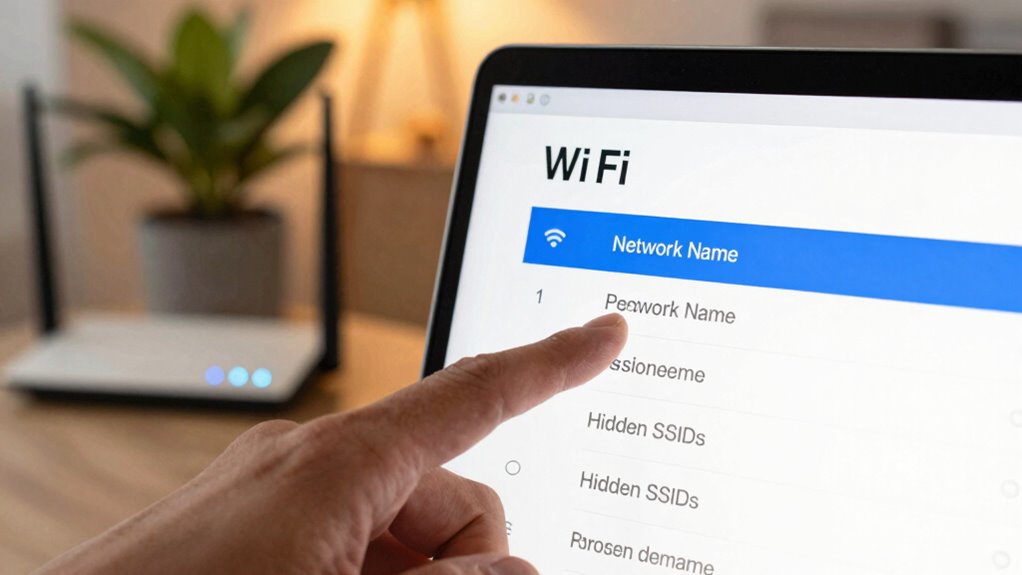
Changing your Wi-Fi name and hiding your network are simple yet effective steps to improve your home network security. By updating your network name, you make it less obvious to potential intruders. Hiding your network prevents it from appearing in Wi-Fi scans, reducing its visibility to outsiders. To do this, access your router’s admin settings and change the network name to something unique. Then, disable the network’s broadcast or visibility option. Consider these tips:
- Use a non-identifiable network name
- Avoid using your name or address
- Turn off SSID broadcast for extra privacy
- Regularly update your network name for added security
- Remember to keep your router’s firmware up to date to patch security vulnerabilities, as firmware updates often include important security patches and improvements. Additionally, regularly reviewing your network security settings helps maintain a robust defense against potential threats. Staying informed about wireless security best practices can further enhance your network’s protection. Incorporating strong encryption protocols like WPA3 can also significantly improve your network’s security against unauthorized access.
Activate Firewall and Monitoring Tools for Extra Security
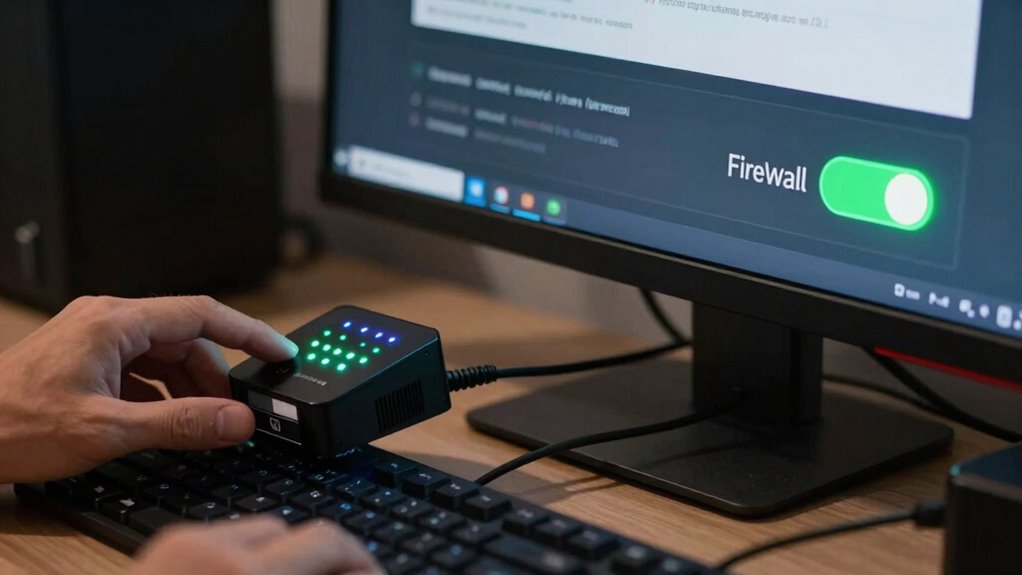
Once you’ve secured your Wi-Fi name and hidden your network, the next step is to strengthen your defenses by activating firewalls and monitoring tools. Firewalls act as a barrier, blocking unauthorized access and filtering network traffic. Enable your router’s built-in firewall and consider installing additional security software for extensive protection. Monitoring tools, such as intrusion detection systems, help you identify suspicious activity early. Regular log analysis allows you to review network events, spotting unusual patterns or potential threats. Setting up alerts for unusual activity ensures quick responses to possible breaches. Combining firewalls with monitoring tools creates a layered defense, making it harder for intruders to access your network and giving you peace of mind. Stay proactive to keep your home network secure.
Frequently Asked Questions
How Can I Identify if My Router Has Been Hacked?
You can tell if your router has been hacked by watching for signs of network intrusion and device compromise. Check for unusual activity, unknown connected devices, or slow internet speeds. Log into your router’s admin panel and review connected devices, firmware updates, and security settings. If you find unfamiliar devices or settings changes you didn’t make, your router might be compromised. Take action quickly to reset your router and update passwords.
What Are the Signs of Unauthorized Access on My Home Network?
You might notice a network anomaly, like slow speeds or frequent disconnects, which could indicate unauthorized device access. Check your router’s connected device list regularly; unfamiliar devices are a red flag. Also, monitor your network traffic for unusual activity. If you spot any suspicious devices or unusual behavior, it’s a sign someone has gained unauthorized access, and you should take steps to secure your network immediately.
How Often Should I Change My Wi-Fi Password?
Changing your Wi-Fi password is like locking your house tighter; it’s best done every few months. You should update it more often if you notice suspicious activity or share it widely. Use complex passwords with a mix of letters, numbers, and symbols. Also, consider network segmentation—separating your main devices from guest access—so even if one gets compromised, your core network stays secure. Regular updates keep you safer.
Can I Secure My Iot Devices on the Same Network?
Yes, you can secure your IoT devices on the same network by implementing IoT device segmentation and network access restrictions. This keeps your IoT devices isolated from your main devices, reducing security risks. Create a separate network or use VLANs for IoT devices, and set strict access controls. This way, even if an IoT device gets compromised, your primary devices stay protected.
What Additional Steps Can I Take to Prevent Network Breaches?
To prevent network breaches, you should start by configuring your firewall to block unauthorized access and monitor traffic. Setting up a VPN adds an extra layer of security, encrypting your data and hiding your IP address. Regularly update your router’s firmware and change default passwords. These steps, combined with strong encryption and network segmentation, considerably reduce your risk of breaches and keep your home network safer.
Conclusion
By taking these seven steps, you can markedly boost your home network’s security. Some experts believe that a well-protected network can even deter cybercriminals from targeting your devices—like a digital fortress. Think of it this way: the more barriers you put up, the less likely hackers will succeed. So don’t wait—secure your network today and enjoy peace of mind knowing your digital life is better protected.