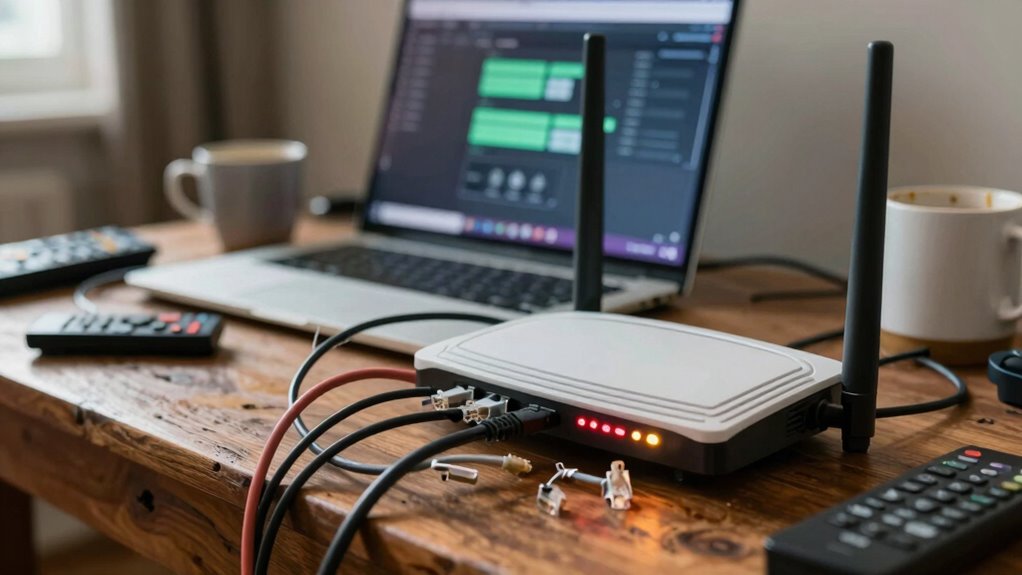
One common reason your Wi-Fi slows down is interference from nearby electronic devices like microwaves, cordless phones, or other Wi-Fi networks using crowded channels. You might have your router placed behind thick walls or near metal objects, weakening signals. Additionally, using the wrong Wi-Fi band or outdated firmware can reduce speeds. Fixing these issues can considerably boost your connection, and exploring tips to optimize your setup will help you get the most out of your network.
Key Takeaways
- External electronic devices like microwaves and cordless phones can cause Wi-Fi interference, slowing down your connection.
- Walls, furniture, and large appliances block or reflect Wi-Fi signals, reducing speed and coverage.
- Using the same Wi-Fi channel as neighboring networks creates congestion, impacting your internet speed.
- Outdated router firmware and misconfigured settings can lead to slow Wi-Fi performance.
- Devices defaulting to crowded 2.4 GHz bands or not optimized for 5 GHz can cause slower speeds.
What Causes Wi-Fi Interference and How to Reduce It

Wi-Fi interference occurs when signals from other electronic devices disrupt your wireless connection, causing slower speeds or dropped connections. Appliances like microwave ovens, cordless phones, and baby monitors can emit signals that interfere with your Wi-Fi, especially if they operate on similar frequencies. To reduce this, consider router placement tips such as positioning your router away from these appliances and electronics. Keep it centrally located in your home, elevated, and away from thick walls or metal objects that can cause interference. Avoid placing your router near large appliances or devices that emit electromagnetic signals. Being aware of electromagnetic interference and optimizing your router’s placement can help you mitigate disruptions. Additionally, understanding frequency interference and choosing the optimal channel can significantly enhance your Wi-Fi stability. Recognizing the impact of network congestion during peak usage times can further improve your connection quality. Also, regularly updating your router’s firmware can help reduce software conflicts that may contribute to connectivity issues. Implementing interference mitigation techniques can further improve your Wi-Fi performance by minimizing external disruptions. By being mindful of interference from appliances and optimizing your router’s placement, you can considerably improve your Wi-Fi performance and enjoy a more stable connection.
Physical Obstacles That Weaken Your Wi-Fi Signal

Physical obstacles such as walls, furniture, and other dense objects can considerably weaken your Wi-Fi signal. Obstructive furniture like large cabinets or metal appliances can block or reflect signals, reducing their strength. Thick walls, especially those made of brick or concrete, serve as significant barriers that slow down or cut off Wi-Fi transmission. When your router is placed far from your devices or behind these obstacles, you’ll notice slower speeds and weaker connections. To improve performance, avoid placing your router behind thick walls or beneath heavy furniture. Keep it in a central, open location, free from obstructive furniture and dense materials. This simple adjustment can make a noticeable difference in your Wi-Fi’s strength and reliability. Moreover, understanding the thermal behavior of your environment can help you optimize your router’s placement for better signal propagation. Additionally, considering the frequency bands used by your router can help reduce interference and improve overall connectivity. Being aware of environmental factors such as temperature and humidity can also influence signal quality, and adjusting for these conditions can enhance your Wi-Fi experience. For example, wireless interference from other electronic devices can further degrade your signal, so positioning your router away from such sources is beneficial. Recognizing how material density impacts signal strength can further guide optimal placement choices.
How to Check and Optimize Your Router Settings

Are you getting the most out of your router’s settings? Start by logging into your router’s admin panel—usually through a web browser. Check if your router firmware is up to date; manufacturers release updates that fix bugs and improve performance. Default settings are often not tailored for your home environment, so consider customizing your Wi-Fi channel, security options, and bandwidth priorities. Disable unused features like WPS or guest networks to reduce interference and improve speed. Resetting to default settings occasionally helps eliminate misconfigurations, but always update firmware afterward to ensure ideal performance. Regularly reviewing and adjusting these settings can considerably boost your Wi-Fi speed and stability, making sure you’re getting the most from your network. Additionally, understanding network optimization principles can help you fine-tune your setup for optimal performance, especially when dealing with factors like channel interference that can degrade signal quality. Being aware of manipulation tactics used by some devices or networks can also help you protect your connection from intentional interference or malicious activity. Incorporating performance monitoring tools can further assist in identifying issues before they significantly impact your connection.
Why Using the Wrong Wi-Fi Band Can Slow You Down
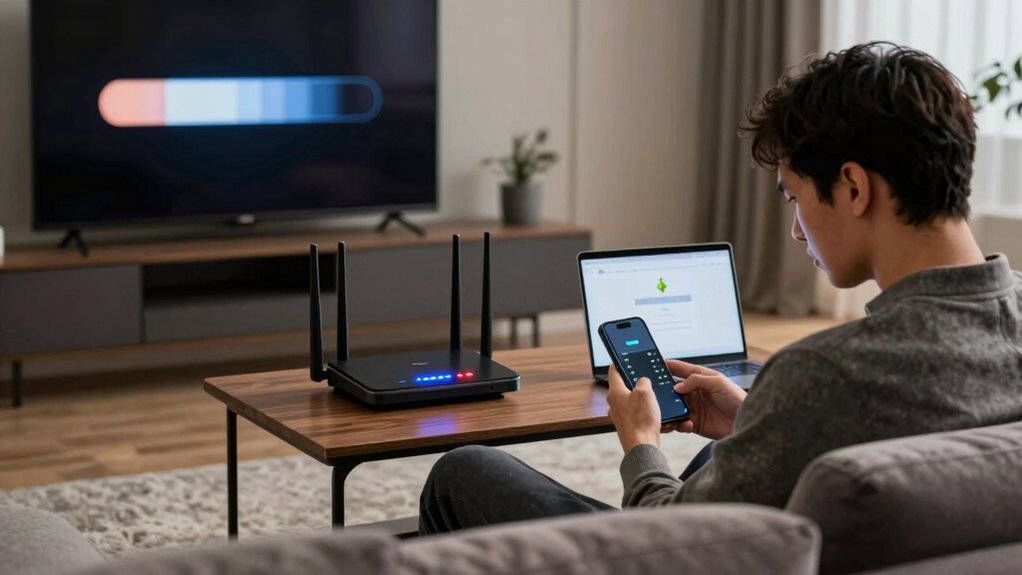
Using the wrong Wi-Fi band can considerably slow your internet speed. Compatibility issues, device preferences, and signal interference all play a role in this problem. Understanding these factors helps you choose the best band to keep your connection fast and stable.
Band Compatibility Issues
Choosing the wrong Wi-Fi band can considerably slow down your internet connection, even if your device supports faster speeds. Band compatibility issues often stem from mismatched wireless standards or using outdated bands. To maximize performance, ensure your device and router support the same wireless standards, such as 802.11ac or 802.11ax. Additionally, selecting the right band matters:
- 2.4 GHz Band – Offers wider coverage but slower speeds, prone to interference.
- 5 GHz Band – Provides faster speeds and less interference but shorter range.
- Dual-Band Compatibility – Use both bands if your device supports it, balancing speed and coverage.
Understanding these factors ensures your device connects to the optimal band, preventing slowdowns caused by incompatible wireless standards or mismatched bands.
Device Connectivity Preferences
Have you ever noticed your internet slowing down unexpectedly? It could be due to your device’s connection preferences. Your device often defaults to a specific Wi-Fi band—usually 2.4 GHz or 5 GHz—based on its device priority settings. If your device prefers the 2.4 GHz band, it might connect to a crowded network, resulting in slower speeds. Conversely, forcing your device to use the 5 GHz band can improve performance, as it typically offers faster speeds and less interference. Adjusting your device’s connection preferences guarantees it chooses the best band for speed and stability. Ignoring these settings means your device might stick to a less efficient band, slowing down your entire internet experience. Properly managing device priority helps you maximize your Wi-Fi speed effortlessly.
Signal Interference Factors
Signal interference can considerably slow down your Wi-Fi connection, especially when your device operates on the wrong band. Choosing the right band and reducing interference is key. Poor router placement, such as placing it near thick walls or electronic devices, weakens the signal. Using outdated or incompatible routers can cause congestion. Signal boosters can help extend coverage, but only if placed correctly—preferably central and elevated. Here are three common interference factors:
- Router placement: Keep it in an open, central location away from metal objects and electronics.
- Band selection: Use the 5 GHz band for faster speeds and less interference, especially in crowded areas.
- Signal boosters: Install them strategically to improve coverage without adding interference.
Addressing these factors ensures you get the best possible Wi-Fi performance.
How Other Devices and Networks Cause Wi-Fi Congestion
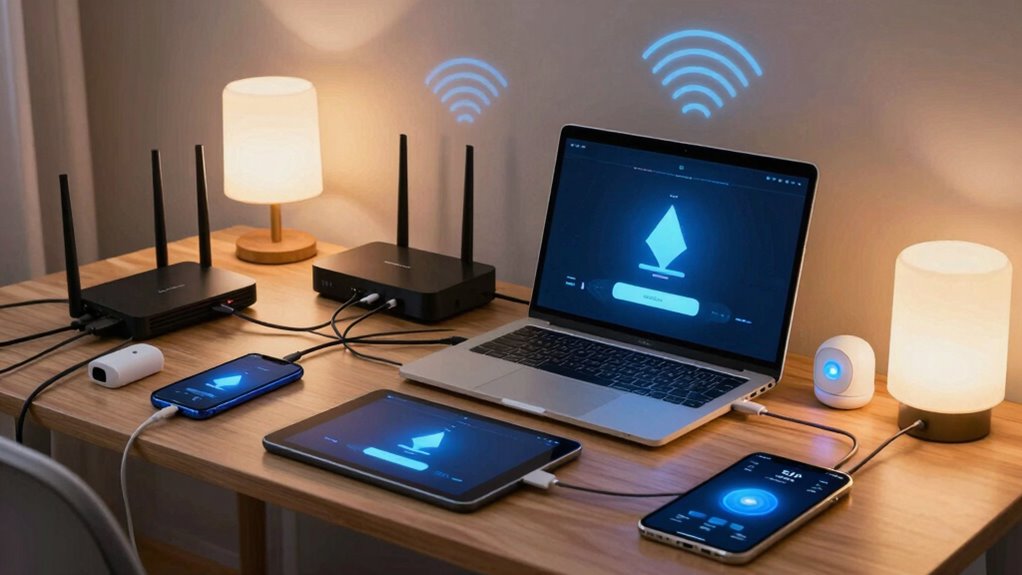
Other devices and nearby networks can considerably slow down your Wi-Fi connection by competing for the same wireless spectrum. In a busy environment, multiple gadgets—like your smart home devices and IoT gadgets—share the same frequency bands, often causing congestion. When several devices transmit data simultaneously, interference rises, leading to slower speeds and dropped connections. Nearby Wi-Fi networks also add to this clutter, especially if they operate on overlapping channels. This congestion affects your device’s ability to communicate efficiently, making your internet feel sluggish. To improve performance, identify and minimize interference sources, such as moving devices away from each other or switching to less crowded channels. Reducing the number of active IoT devices at once can also help alleviate network congestion, maximizing your Wi-Fi performance for every adventure.
Common Device Settings That Affect Wi-Fi Speed

Certain device settings can substantially impact your Wi-Fi speed, often without you realizing it. First, verify your device firmware is up to date, as outdated firmware can cause connectivity issues. Second, check your router placement; placing it in a central, open area helps signals reach devices more efficiently. Third, verify your device’s network settings—disable any power-saving modes or bandwidth limits that might reduce speed. Proper firmware updates improve device performance, while strategic router placement minimizes interference. Adjusting device settings ensures your equipment isn’t unintentionally slowing down your Wi-Fi. Additionally, network optimization techniques can further enhance your connection quality, making a noticeable difference in your setup without requiring major changes. Exploring Soul Sanctuaries and other wellness practices might also help reduce stress that could indirectly affect your network management.
Easy Fixes to Speed Up Your Wi-Fi and Improve Performance

Fortunately, there are simple steps you can take to boost your Wi-Fi speed without needing technical expertise. First, optimize your router placement—position it centrally, elevated, and away from obstructions. Proper placement ensures optimal signal distribution across your space. Next, check for firmware updates; keeping your router’s software current ensures ideal performance and security. Additionally, consider restarting your router regularly to clear temporary glitches. Updating firmware and placing your router wisely can considerably improve speed and coverage. Regularly monitoring your network can also help you identify issues early and optimize your setup. Here’s a quick guide:
| Action | Benefit |
|---|---|
| Improve router placement | Better signal distribution |
| Update firmware | Fix bugs, enhance performance |
| Restart regularly | Maintain smooth operation |
These simple fixes can make a noticeable difference in your Wi-Fi performance. Regularly monitoring your Interest Rate can also help you understand your financial commitments better. Ensuring your network security is up-to-date prevents unauthorized access that could slow down your connection.
Frequently Asked Questions
Can Firmware Updates Improve My Wi-Fi Speed?
Firmware improvements can definitely boost your Wi-Fi speed, as they often fix bugs and optimize performance. If your router is compatible with the latest firmware, updating it can enhance stability and speed. You should check your router manufacturer’s website for updates and verify your device supports the latest version. Regular firmware updates are a simple way to improve your Wi-Fi experience without needing new hardware.
How Does Network Congestion During Peak Hours Affect Performance?
During peak hours, network congestion can drastically slow down your Wi-Fi because many devices compete for bandwidth allocation. This increased competition causes signal interference, reducing your connection quality. You might notice buffering or lag as devices struggle to communicate effectively. To improve performance, limit the number of active devices, switch to a less congested channel, or upgrade your router to better handle bandwidth demands and minimize interference.
Should I Upgrade My Router for Better Wi-Fi Speeds?
Yes, upgrading your router can improve Wi-Fi speeds. Proper router placement is essential—place it centrally and elevated to maximize coverage, and avoid placing it near metal objects or thick walls. Also, reduce signal interference by keeping it away from other electronic devices like microwaves and cordless phones. A newer router with better antennas and support for modern standards can handle multiple devices efficiently, boosting your overall internet experience.
What Role Does ISP Throttling Play in Slow Wi-Fi?
ISP throttling can considerably impact your Wi-Fi speed by limiting bandwidth allocation during peak times or for certain services. It can also cause signal interference, especially if your ISP prioritizes certain traffic over others. To combat this, you might consider using a VPN to bypass throttling or upgrading your plan for higher bandwidth. Ensuring your Wi-Fi setup minimizes interference helps maintain peak speeds despite potential ISP restrictions.
How Do VPNS Impact Wi-Fi Connection Speed?
VPNs can slow your Wi-Fi by adding encryption, which sometimes creates vulnerabilities if not properly managed. The encryption process requires extra processing, reducing speed. Additionally, VPN server locations matter—connecting to distant or overloaded servers can cause lag. To maintain good speed, choose servers closer to you and make certain your VPN uses strong yet efficient encryption. Avoid servers with known vulnerabilities to keep your connection fast and secure.
Conclusion
Your Wi-Fi might be slow because of simple issues you’re overlooking—interference, obstacles, or outdated settings. Fixing these can dramatically boost your speed, turning frustrating pauses into smooth streaming. It’s easy to ignore these small tweaks, but neglecting them keeps your connection sluggish. So, don’t settle for frustration; take action now. A faster, more reliable Wi-Fi isn’t just a dream—it’s within your reach, waiting behind those simple adjustments.