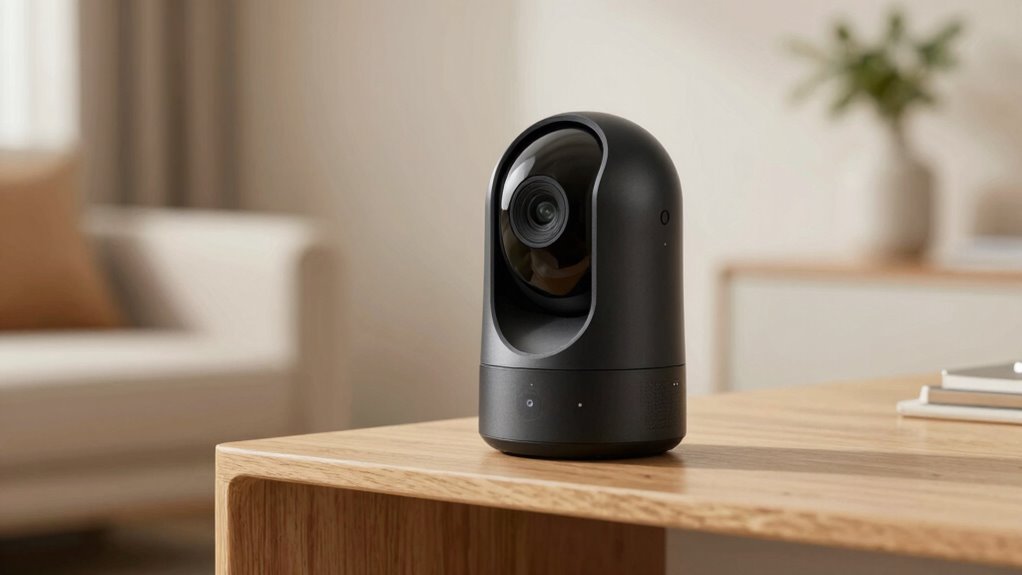

To protect your smart camera’s privacy, focus on enabling essential settings like camera encryption and strong passwords, and disable cloud storage if possible. Manage user permissions carefully, limit app access, and use multi-factor authentication for added security. Physically cover the lens when not in use, use privacy mode, and keep firmware updated to patch vulnerabilities. Securing your Wi-Fi network and segmenting it for your camera can prevent unauthorized access. Keep these tips in mind to stay safer; exploring further reveals even more effective strategies.
Key Takeaways
- Enable encryption and strong passwords to protect video streams and account access.
- Regularly review and update privacy settings and app permissions for control over data sharing.
- Use physical covers or privacy mode to immediately disable camera when not in use.
- Segregate camera networks and disable remote access to reduce hacking risks.
- Keep firmware and software up-to-date to patch vulnerabilities and enhance security features.
How to Identify and Enable Essential Privacy Settings on Your Smart Camera
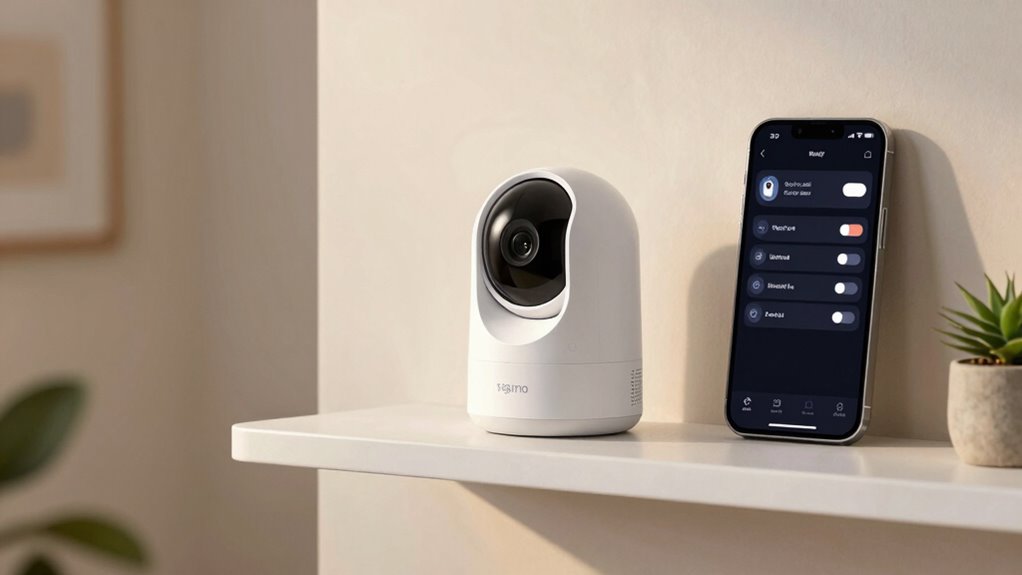
To effectively protect your privacy, start by thoroughly exploring your smart camera’s settings menu. Look for options related to camera encryption, which secures your video streams from unauthorized access. Enable encryption to assure your footage remains private during transmission and storage. Also, check for user authentication settings—these control who can access your camera. Set strong, unique passwords and activate two-factor authentication if available. Some cameras let you create multiple user profiles with different permissions; use this feature to limit access. Regularly review these settings to maintain security. By focusing on camera encryption and user authentication, you make it notably harder for intruders to hack or spy on you, keeping your smart camera’s footage private and protected. Additionally, integrating connected equipment can enhance your overall home security and privacy management. Implementing privacy-focused features, such as activity logs and automated alerts, can further help monitor and control access to your camera footage. Incorporating security protocols, like firmware updates and network segmentation, can also significantly reduce vulnerabilities. Maintaining an awareness of security best practices is essential to adapt to evolving threats and ensure ongoing privacy.
How to Disable or Limit Microphone and Video Access for Privacy
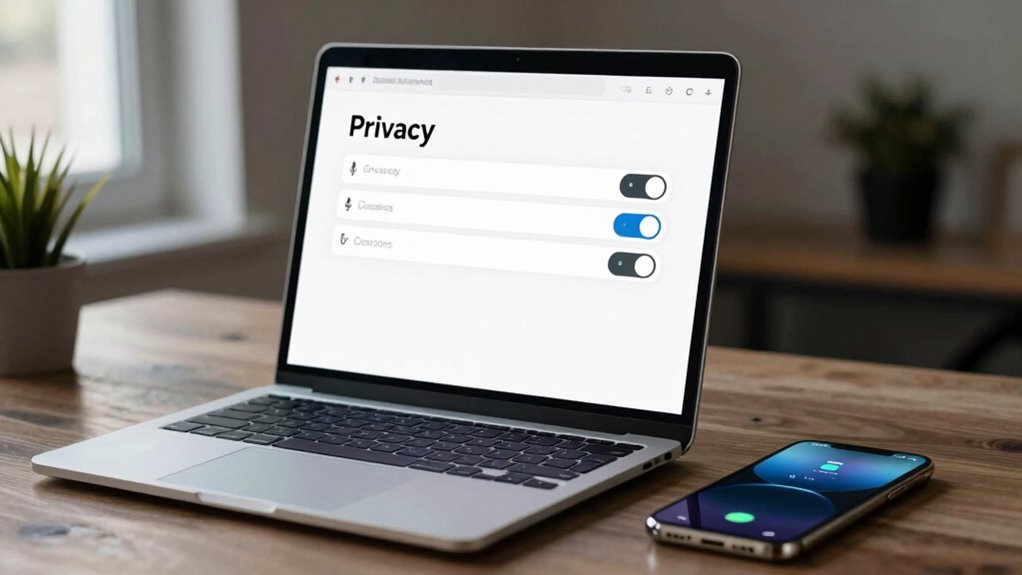
You can safeguard your privacy by managing app permissions to control which apps access your microphone and camera. Using microphone muting during sensitive moments adds an extra layer of security, while adjusting camera settings helps limit unwanted video access. Taking these steps ensures you stay in control of your device’s audio and visual features. Understanding device permissions can help you make informed choices about your privacy settings, especially when considering privacy-conscious app usage to prevent unauthorized data collection. Implementing vetted wave and wind protections can further reinforce your privacy defenses against potential breaches. Additionally, regularly reviewing your cookie preferences can help ensure your browsing privacy remains intact, aligning with best practices for device security and safeguarding your personal data.
Manage App Permissions
Managing app permissions is essential for maintaining your privacy when using smart cameras. Start by reviewing which apps have access to your camera and microphone, and disable permissions for those unnecessary. Proper camera placement can also reduce the need for frequent access, ensuring sensitive areas are not easily captured. Always verify that user authentication is required before granting app permissions, adding an extra layer of security. Limit permissions to only essential functions, like viewing live feeds, and avoid granting full access unless necessary. Regularly check your app permissions, especially after updates, to prevent apps from gaining unwanted access. Utilizing privacy controls within your device settings can further enhance your security and prevent unauthorized access. Be aware that camera placement can influence how often apps need to access your device, reducing potential privacy risks. By controlling app permissions carefully, you minimize potential privacy breaches and keep your camera usage secure. Additionally, understanding the privacy settings offered by your smart home ecosystem can help you fine-tune access controls and protect your personal data.
Use Microphone Muting
Disabling or limiting your smart camera’s microphone and video access is a straightforward way to protect your privacy. If you rarely use voice commands, consider muting the microphone when it’s not needed. Many cameras offer a simple toggle to disable audio recording, preventing any unwanted listening. This prevents the device from capturing conversations, reducing the risk of eavesdropping. You can also deactivate voice command features altogether if privacy concerns outweigh convenience. Regularly muting the microphone when not in use ensures that your smart camera isn’t listening in the background. Additionally, understanding Free Floating concepts can help you better grasp how your device interacts with its environment. Remember, even when the microphone is muted, the camera’s video remains active unless you disable or cover it. Taking these steps helps you maintain control over what your smart camera can access, safeguarding your personal space. Understanding privacy settings and how they function is crucial for effective protection, especially since passive voice can obscure who is responsible for certain actions in your device’s operations. Being aware of device behavior can further enhance your ability to manage your privacy effectively. For example, exploring the microphone muting options in your device settings can ensure you are fully aware of its capabilities and limitations.
Adjust Camera Settings
Adjusting your camera’s settings is an effective way to control its microphone and video access, enhancing your privacy. Start by reviewing the camera placement; position it away from private areas to prevent unintended exposure. Disable or restrict access in the device’s settings to limit when the camera and microphone are active, reducing potential spying. Lighting optimization is also vital—use proper lighting to improve video quality so you won’t feel compelled to keep the camera on constantly. Consider covering the camera lens physically when not in use for added security. By customizing these settings and optimizing camera placement and lighting, you gain better control over your privacy and prevent unnecessary access or surveillance through your smart camera. Additionally, understanding the thermal behavior of your camera can help you identify unusual activity or overheating that might indicate unauthorized use, as thermal anomalies could signal tampering or malfunction. Ensuring device security measures are up to date can further help protect against unauthorized access and ensure your camera’s integrity. Regularly monitoring your camera’s thermal performance can also alert you to potential security breaches or device issues, and staying informed about software updates can patch vulnerabilities and improve overall security.
How Disabling Cloud Storage Protects Your Camera Data
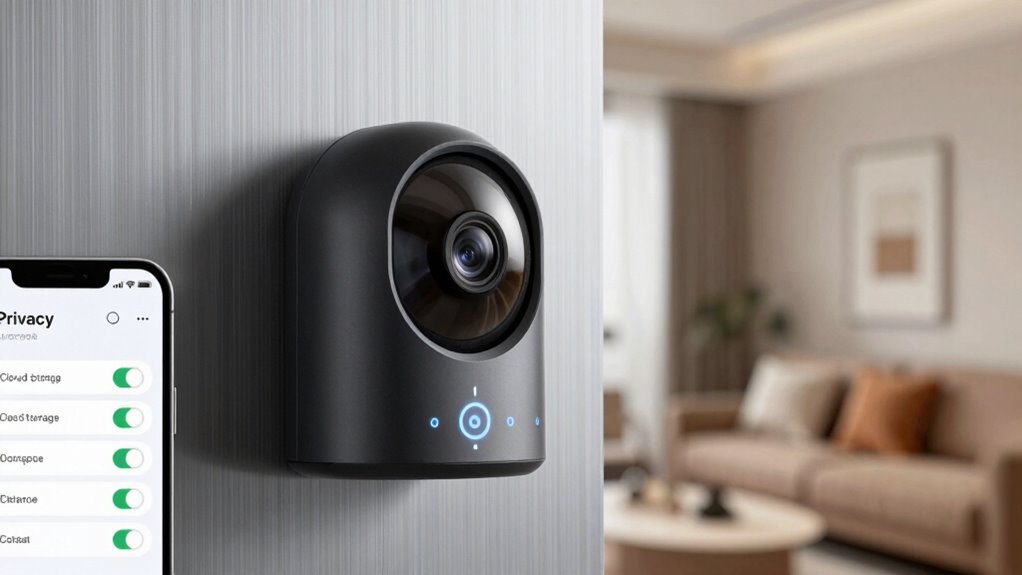
When you turn off cloud storage for your smart camera, you considerably reduce the risk of your footage being accessed without your permission. Without cloud storage, your data stays local, limiting exposure to external breaches. This also helps prevent misinformation and ensures that sensitive footage isn’t disseminated without your knowledge. Disabling cloud storage also prevents unauthorized access through third-party servers, keeping your data more secure. Keep in mind that local storage options, like SD cards, often use data encryption, adding an extra layer of protection. Additionally, choosing systems that are compatible with security-focused features can further enhance your privacy.
How to Review and Manage Your Camera’s Privacy Policies and Data Sharing
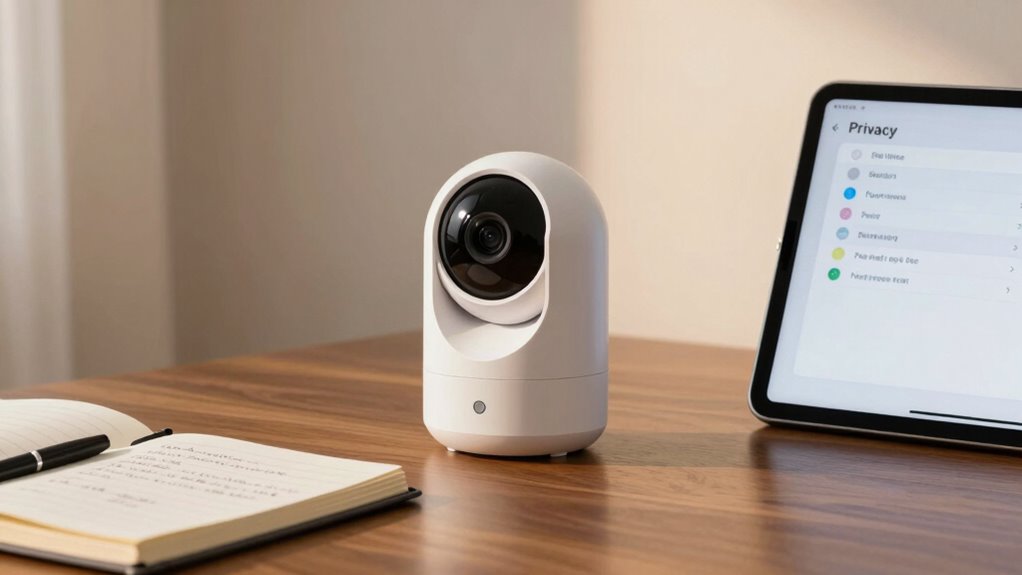
Reviewing and managing your camera’s privacy policies and data sharing settings empowers you to control how your footage is used and protected. Start by reading the camera data policies carefully to understand what data is collected and how it’s shared. Confirm the manufacturer adheres to privacy compliance standards to protect your information. Regularly check your device’s privacy settings and update permissions as needed. Use the table below to evaluate key aspects:
| Aspect | What to Look For |
|---|---|
| Data Collection | What data is collected and stored? |
| Data Sharing | Who has access, and with whom is data shared? |
| Privacy Policies | Clear, transparent explanations? |
| Privacy Compliance | Certifications or adherence to privacy standards? |
| User Control | Options for data deletion and permission management? |
This review helps keep your camera data safe and compliant. Additionally, understanding how your device’s data collection practices align with your privacy expectations is crucial for maintaining control over your footage.
How to Secure Your Wi-Fi and Segment Your Network for Camera Privacy
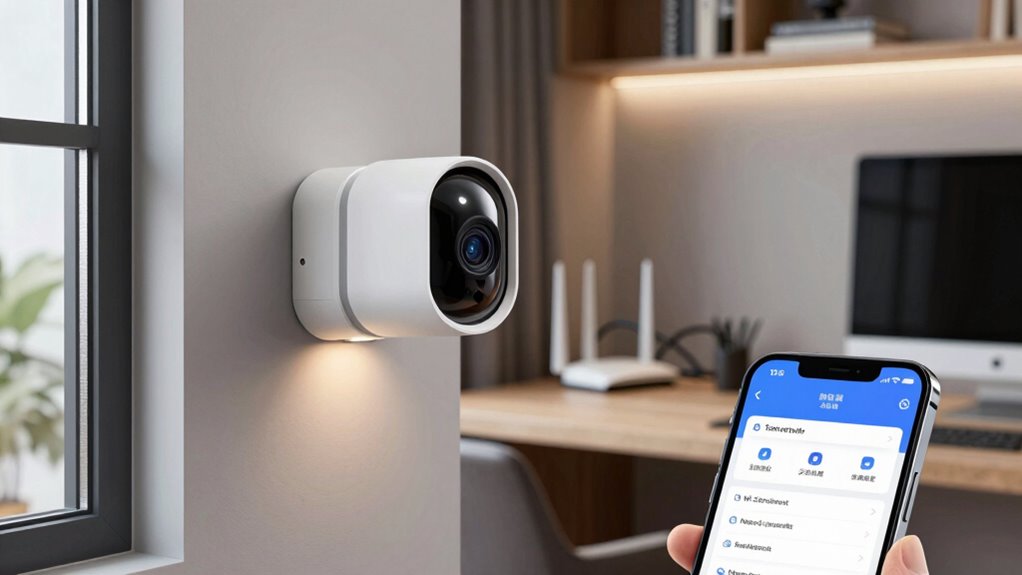
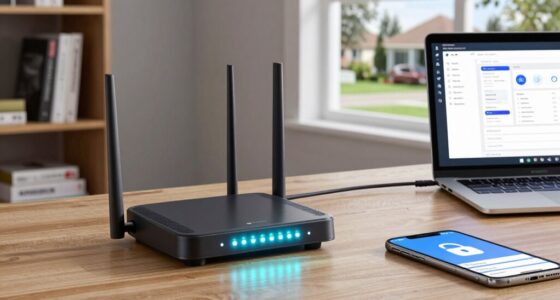
Securing your Wi-Fi network is essential to protect your camera footage from unauthorized access. Start by changing default passwords on your router and enabling WPA3 encryption. Use Wi Fi segmentation to isolate your smart cameras from other devices, reducing risk if one gets compromised. Regularly perform network monitoring to detect unusual activity. Consider creating a separate guest network for visitors, keeping your main network more secure. Keep your firmware updated to patch vulnerabilities promptly. Disable UPnP to prevent external access. Use strong, unique passwords for all network devices. By implementing these steps, you ensure your network remains resilient, and your camera footage stays private.
Secure your Wi-Fi with strong passwords, WPA3, network segmentation, and regular updates to keep your camera footage private.
- Change default router passwords
- Enable WPA3 encryption
- Create separate Wi-Fi segments for cameras
- Regularly review network activity through monitoring
- Keep firmware updated
How to Use Privacy Mode and Physical Covers to Block Camera Views

Using privacy mode and physical covers gives you immediate control over your camera’s view, allowing you to block unwanted footage instantly. Privacy mode disables the camera’s recording and streaming functions, providing a quick way to protect your privacy when needed. Physical covers, such as tape or dedicated sliding covers, are simple tools that block the camera lens completely, regardless of camera placement. Proper camera placement is essential; position cameras where you want surveillance and avoid areas where privacy is vital. When you don’t need monitoring, use physical covers to physically block the lens. This hands-on approach ensures no accidental footage is captured. Combining privacy mode with physical covers offers a reliable, straightforward way to protect your camera’s view and maintain your privacy at all times.
Why Keeping Firmware Updated Is Crucial for Camera Security
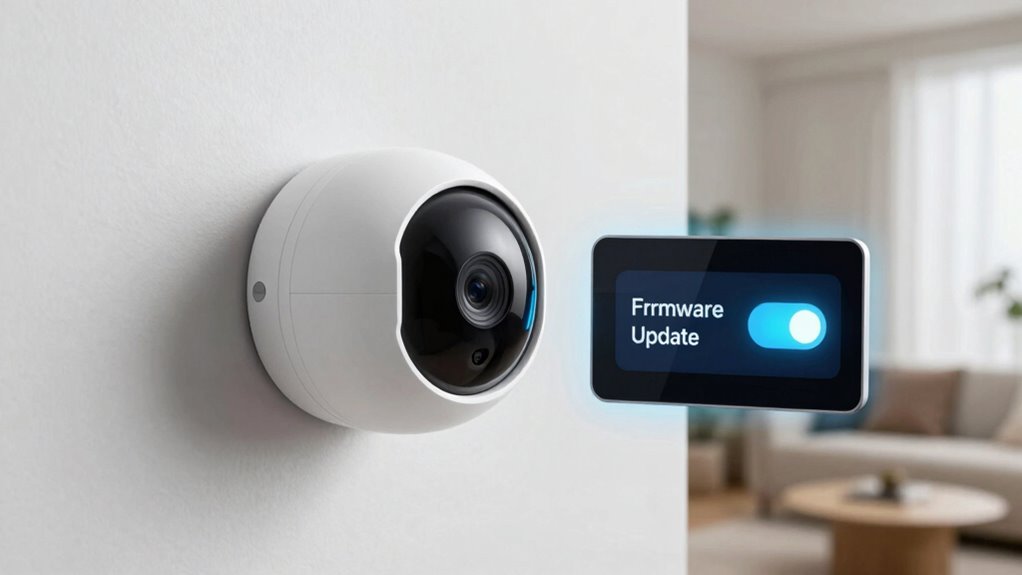
Keeping your camera’s firmware up to date is essential because it guarantees you have the latest security patches and features. Firmware updates fix vulnerabilities that hackers may exploit, strengthening your device’s defenses. Without these updates, your camera remains exposed to cyber threats and unauthorized access. Regularly updating ensures you benefit from the newest security patches designed to patch flaws and improve performance.
- Protects against known vulnerabilities
- Adds new security features
- Fixes bugs that could be exploited
- Ensures compatibility with other devices
- Maintains overall device security
Skipping firmware updates leaves your camera vulnerable to attacks. Stay proactive by applying updates promptly to keep your device secure and your privacy protected.
How to Control Who Can Access Your Camera and Manage Permissions
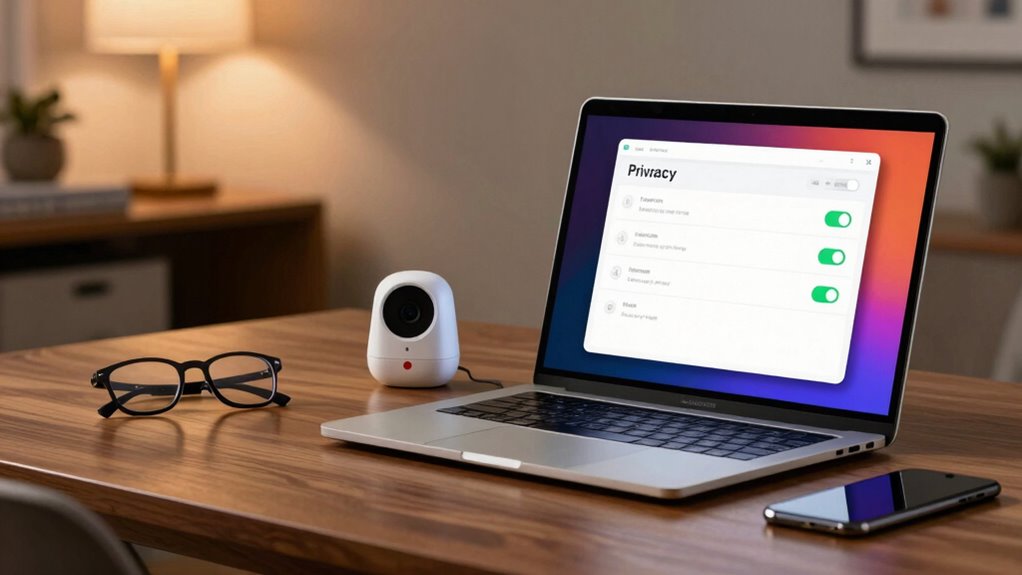
You can control who accesses your smart camera by managing app permissions and adjusting privacy settings. Enable camera access controls to restrict usage and prevent unauthorized viewing. Regularly review your privacy settings to make certain only trusted devices and users have permission.
Manage App Permissions
Controlling who can access your camera starts with managing app permissions on your device. You need to decide which apps can access your camera lens and how they use it. Check app permissions regularly and revoke access for apps you no longer trust or don’t use. Be especially cautious with apps that enable features like motion detection, which can activate your camera remotely. To manage permissions effectively, consider these steps:
- Review app permissions in device settings
- Disable camera access for unnecessary apps
- Limit camera access to trusted apps only
- Turn off motion detection permissions if unsure
- Regularly update your apps and device software
Enable Camera Access Controls
To effectively control who can access your camera, it’s essential to enable and customize camera access controls on your device. First, review your camera placement to ensure it’s positioned to prevent unwanted viewing angles. Adjust lighting optimization around your camera to eliminate shadows or glare that could reveal sensitive areas. Enable access controls in your device settings by setting permissions for each app, allowing only trusted ones to use your camera. Regularly update these permissions to revoke access for apps you no longer trust. By managing access carefully, you prevent unauthorized users from viewing your camera feed. Remember, controlling who can access your camera is a key step in maintaining your privacy and ensuring your device’s security.
Review Privacy Settings
Regularly reviewing your privacy settings guarantees that only trusted apps and users can access your camera. Start by checking which apps have permission, and make certain camera placement aligns with your privacy preferences. Use user authentication features to control who can view or modify camera settings.
- Limit camera access to essential apps only
- Adjust permissions based on app necessity
- Enable multi-factor authentication for added security
- Regularly update your device’s privacy settings
- Disable camera access for unfamiliar or unused apps
Additional Tips to Keep Your Smart Home Privacy Safe
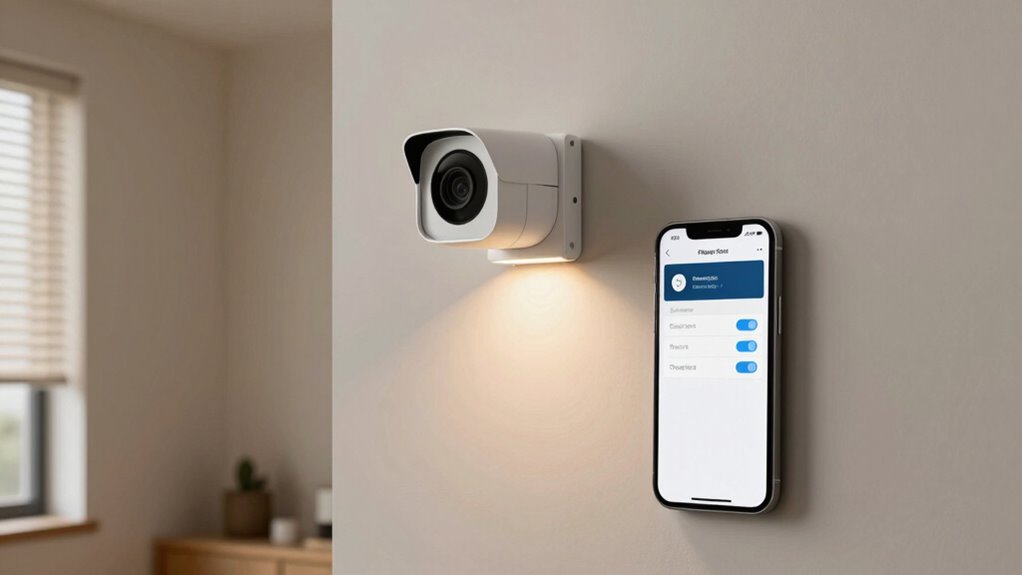
Protecting your smart home privacy requires proactive steps beyond just choosing the right devices. First, pay attention to camera placement—avoid installing cameras in private areas like bedrooms or bathrooms to respect your own privacy and that of others. Proper camera positioning also reduces the risk of unauthorized viewing. Always seek user consent before sharing footage or allowing others to access your smart camera feeds. Clearly communicate who has access and when, preventing surprises or misunderstandings. Regularly update your device firmware and change default passwords to patch security vulnerabilities. Use strong, unique passwords for each device and enable two-factor authentication whenever possible. These simple steps help ensure your smart home remains private and secure against potential threats.
Frequently Asked Questions
Can I Disable Remote Access Without Affecting Camera Functionality?
Yes, you can disable remote access without affecting the camera’s core functionality. To do this, go into your camera’s settings and turn off remote access features or disable specific permissions for external connections. This way, the camera remains operational locally, but outside access is blocked. Keep in mind, disabling remote access enhances your privacy and security by preventing unwanted camera disablement or hacking attempts from remote sources.
What Are the Risks of Sharing Camera Access With Third-Party Apps?
Sharing camera access with third-party apps is like inviting trouble into your home; it exposes you to third-party vulnerabilities that can be exploited. When you grant app permissions, you risk these apps accessing your footage without your knowledge or consent, compromising your privacy. Always review and limit app permissions carefully, and avoid sharing access unless you trust the app’s security measures—your privacy is worth protecting from potential breaches.
How Do I Detect if My Camera Is Being Hacked?
You can detect if your camera’s being hacked by paying attention to the camera indicator light—if it’s on when you’re not using it, that’s suspicious activity. Check for any unusual apps or processes running in the background. Regularly update your device’s software, and run security scans. If you notice any strange behavior or persistent indicator activity, disconnect your camera and consider professional help to secure your device.
Are There Legal Restrictions on Recording With Smart Cameras?
Are you aware of the legal restrictions on recording with smart cameras? You should know that recording laws vary by location. In many places, you can’t record someone without their consent, especially in private settings. Always check local laws before installing or using your smart camera. Violating these legal restrictions can lead to fines or legal action. So, stay informed and guarantee you’re recording within the boundaries of the law.
How Often Should I Review My Camera’s Privacy Settings?
You should review your camera’s privacy settings at least once a month. Regular privacy audits help you catch any unauthorized access or changes. Also, stay on top of security updates from the manufacturer to patch vulnerabilities. By doing so, you safeguard your data and guarantee your camera’s settings stay aligned with your privacy preferences. Consistent reviews keep your device secure and give you peace of mind.
Conclusion
By taking these steps, you’re not just protecting your smart camera—you’re uncovering hidden vulnerabilities most overlook. Sometimes, the tiniest tweak or overlooked setting can make all the difference. Remember, as smart homes become more common, so do the risks. Stay vigilant and proactive; it’s the coincidence of simple actions that often keeps your privacy safe. In the end, your awareness is the best shield against unwanted eyes watching you.