
Smart devices often drop offline because of weak Wi-Fi signals, interference from electronics, outdated hardware, or too many devices sharing your network. To fix this, check your Wi-Fi strength, update device firmware, and optimize placement away from interference sources. Managing network traffic and reducing device congestion also helps. If problems persist, proper troubleshooting and setup are key—continuing with the solutions below will help you stabilize your smart devices more effectively.
Key Takeaways
- Weak Wi-Fi signals and interference from household electronics cause devices to disconnect frequently.
- Outdated firmware on your devices or router can lead to compatibility issues and instability.
- Overcrowding of multiple devices sharing bandwidth reduces network performance, causing drops.
- Poor device placement, such as being far from the router or behind obstructions, weakens signals.
- Regular network diagnostics, firmware updates, and professional support help maintain stable device connections.
Why Your Smart Devices Keep Going Offline: And How to Fix It
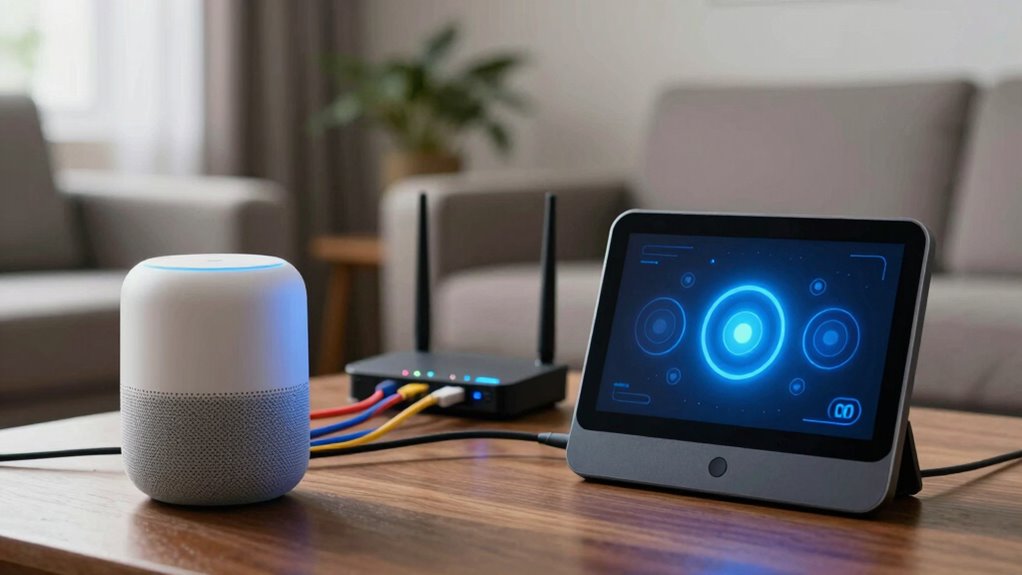
Why Your Smart Devices Keep Going Offline: And How to Fix It
If your smart devices keep disconnecting from your network, it’s often due to weak Wi-Fi signals or interference. But device compatibility also plays a key role. Some devices aren’t fully compatible with your router or network setup, causing frequent drops. Check the device specifications before purchasing or troubleshooting. Your user behavior matters too — for example, placing devices too far from the router or using outdated firmware can lead to connectivity issues. Avoid overcrowding your network with multiple devices, which can overwhelm bandwidth and cause instability. Regularly updating device firmware and choosing compatible smart devices help guarantee smoother connections. Being mindful of how you set up and manage your network can considerably reduce the chances of devices going offline unexpectedly. Additionally, optimizing your network setup by adjusting router placement and settings can significantly improve device stability. Ensuring your network has sufficient bandwidth and minimal interference sources can also contribute to a more reliable connection. Recognizing the importance of proper network configuration can further enhance overall stability and device performance. Maintaining a balanced network load can prevent congestion and improve overall connectivity. Furthermore, understanding how network congestion impacts device performance can help you implement better management strategies.
Quick Checks to Fix Offline Smart Devices

When your smart devices go offline, performing a few quick checks can often resolve the issue without complex troubleshooting. Start by rebooting the device; a simple device reboot can refresh the connection and fix minor glitches. If that doesn’t work, try resetting the password—sometimes, login issues prevent proper communication. Use the table below to guide your quick checks:
| Step | Action |
|---|---|
| Check Power | Ensure the device is plugged in and powered on. |
| Reboot Device | Turn it off, wait a few seconds, then turn back on. |
| Confirm Wi-Fi | Make sure your Wi-Fi is active and within range. |
| Reset Password | Change or reset device passwords if prompted. |
| Reconnect Device | Remove and reconnect the device to your network. |
Additionally, understanding your network’s router placement and ensuring it provides a strong, stable signal can help prevent devices from dropping offline. Proper network setup not only improves connectivity but also enhances overall security and efficiency of your smart devices. Regularly updating your device firmware and network hardware can further reduce offline issues. These simple steps often bring your smart device back online swiftly, and consulting your device’s user manual can provide device-specific troubleshooting tips.
Understanding Wi-Fi Signal Strength and Its Effect on Devices
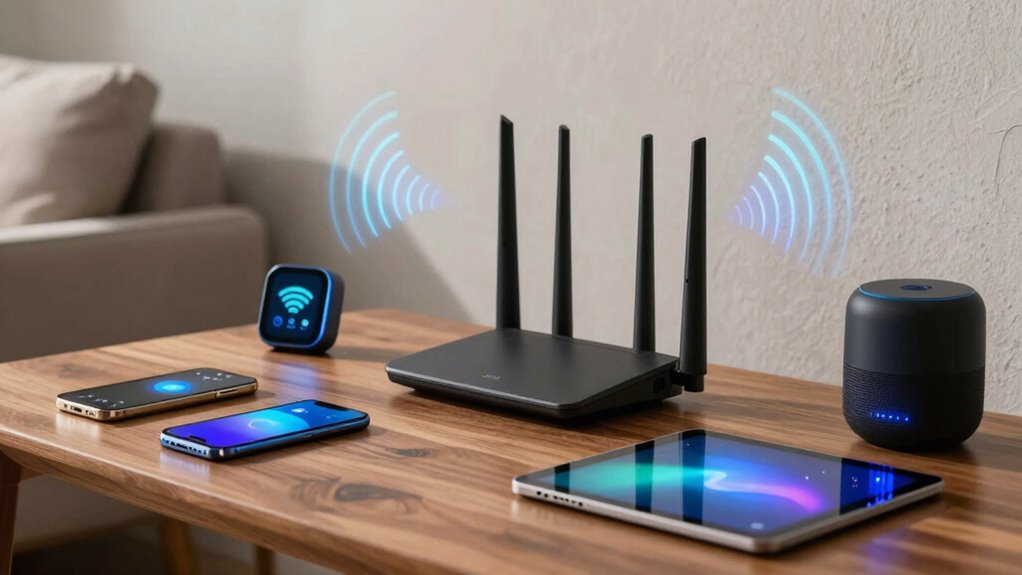
Wi-Fi signal strength directly impacts how well your smart devices perform and stay connected. Weak signals can cause devices to drop offline or lag. Factors like signal interference from other Wi-Fi networks or electronic devices can reduce signal clarity. signal interference can be caused by various household electronics, which makes understanding and managing it crucial. Bandwidth limitations also play a role, especially if multiple devices share the same network, causing congestion. When your signal is strong, your devices communicate reliably, while weak signals lead to drops and slow responses. To improve your Wi-Fi, consider these points:
- Minimize signal interference by moving devices away from microwaves or cordless phones
- Use a Wi-Fi extender or mesh system to boost signal coverage
- Limit bandwidth-hogging activities during critical device use
- Understanding network congestion helps you identify and reduce sources of disruption, ensuring more stable connections for your devices. Additionally, connected devices can overwhelm your network, so managing their number can help maintain stability.
Managing Network Traffic to Keep Your Devices Connected
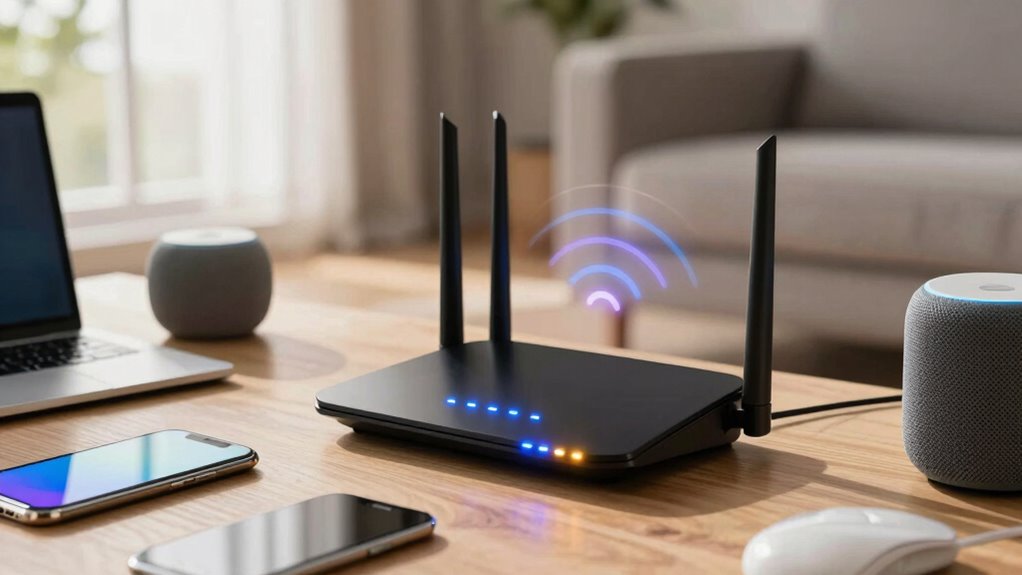
Managing network traffic is essential to guarantee your smart devices stay connected and function smoothly. By effectively using bandwidth management and device prioritization, you can prevent devices from dropping offline. Allocate more bandwidth to critical devices like security cameras or smart thermostats, ensuring they always have a stable connection. Use device prioritization to assign higher network priority to essential gadgets, reducing lag and disconnections. Additionally, understanding reliable, well-researched, and easy-to-follow culinary education can help you troubleshoot connectivity issues more effectively. Recognizing the importance of network stability enables you to implement better solutions for ongoing device performance. Consistent maintenance and understanding power tool fundamentals can also contribute to a more stable network environment. Regularly updating your router firmware and performing network diagnostics can further enhance connection reliability. Here’s a quick guide:
| Device Type | Bandwidth Priority | Usage Tips |
|---|---|---|
| Security Cameras | High | Prioritize for real-time feeds |
| Smart Speakers | Medium | Limit simultaneous streams |
| Smartphones | Low | Schedule updates during off-peak |
This approach helps you optimize network traffic efficiently, keeping all devices reliably connected.
Keep Your Devices Updated for Better Connection

Keeping your devices updated is essential for a stable connection. Make certain you install regular firmware updates and enable automatic updates whenever possible. Checking the update status regularly helps ensure your devices run smoothly and stay online. Incorporating reliable power backup solutions can also prevent disruptions during outages. Additionally, maintaining proper network setup by optimizing Wi-Fi placement and minimizing interference can significantly enhance connectivity stability. Regularly monitoring device performance can help identify and resolve issues before they cause disconnections. Understanding the role of smart energy management systems can further improve overall network reliability and efficiency. Being aware of wave and wind influences can also aid in troubleshooting connectivity issues caused by environmental factors.
Regular Firmware Updates
Regular firmware updates are essential to maintaining a stable connection for your smart devices. Updating firmware guarantees compatibility with the latest network protocols and features, reducing the chances of drop-offs. It also addresses hardware obsolescence, preventing devices from becoming incompatible with new technology or security standards. Staying current with updates can fix bugs that cause connectivity issues and improve overall performance. Understanding how sound works can help you better troubleshoot device issues related to network interference. Additionally, keeping firmware current ensures that your devices are protected against security vulnerabilities, which can otherwise lead to connection problems or unauthorized access.
Enable Automatic Updates
Enabling automatic updates guarantees your smart devices stay current without manual intervention, which helps maintain a stable and reliable connection. By turning on automatic updates, you ensure your devices receive the latest firmware, improving device compatibility and fixing bugs that could cause disconnections. Keeping software current minimizes the risk of security vulnerabilities and optimizes performance. Here’s a quick overview:
| Benefit | Explanation |
|---|---|
| Improved stability | Updates fix bugs affecting connectivity |
| Enhanced security | Protects against vulnerabilities |
| Better device compatibility | Ensures seamless integration with other tech |
| Reduced manual effort | Automatic updates run without your input |
This proactive approach keeps your smart devices running smoothly and reduces offline issues. Travel tech & electronics helps ensure your devices remain connected and functional during your trips, especially as nanotechnology advances continue to improve device hardware and connectivity solutions.
Check Update Status
Ever wondered if your smart devices are running the latest software? Checking their update status is simple and vital for stable connections. First, confirm device compatibility to make sure your device can handle the latest updates. Next, regularly look for update notifications in your app or device settings—they alert you when a new version is available. Finally, manually verify update status by accessing device settings, where you can see if your device needs an update or if it’s already current. Keeping your devices up-to-date reduces offline drops and improves performance. Remember, ignoring update notifications can leave your device vulnerable or incompatible with your network. Staying proactive with update checks helps maintain a reliable, seamless smart home experience.
Troubleshoot Your Router and Modem for a More Reliable Wi-Fi

To improve your Wi-Fi reliability, start by checking for firmware updates on your router and modem. Make sure your router is placed in a central, open spot to maximize coverage, and consider resetting your modem regularly to prevent connectivity issues. These simple steps can help keep your smart devices connected without interruptions.
Check Firmware Updates
Are your smart devices still dropping offline despite restarting your router? Checking your router’s firmware updates is vital for ensuring firmware stability and consistent performance. Outdated firmware can cause connectivity issues and reduce device reliability. Regular update frequency helps patch bugs, improve security, and enhance overall stability.
Here’s what to do:
- Visit your router manufacturer’s website or log in to the admin panel.
- Check for available firmware updates and follow instructions to install them.
- Restart your router after updating to guarantee the new firmware takes effect.
Keeping your firmware current minimizes the chances of connection drops and keeps your smart devices functioning smoothly. Staying on top of updates ensures you’re benefiting from the latest stability improvements and security patches.
Optimize Router Placement
Proper router placement is essential for a strong, stable Wi-Fi connection that keeps your smart devices online. To optimize your router’s signal, position it in a central location, away from thick walls or large metal objects that can block signals. Elevate the router on a shelf or mount it higher to improve coverage. Avoid placing it near electronic devices like microwaves or cordless phones, which can cause interference. Keep the router away from clutter and other electronics that may disrupt signal quality. Effective router placement ensures better signal distribution throughout your home, reducing dead zones and lag. By focusing on signal optimization through proper positioning, you can improve the reliability of your Wi-Fi network and keep your smart devices consistently connected.
Reset Modem Regularly
Have you noticed your smart devices disconnecting unexpectedly or experiencing slow responses? A simple yet effective step is to reset your modem regularly. Performing a modem reset can improve network stability by clearing minor glitches and revitalizing your connection. Schedule a routine reset, especially if you notice frequent drops or sluggish performance.
Consider these tips:
- Power off your modem, wait 30 seconds, then turn it back on.
- Update your modem’s firmware to ensure peak performance.
- Check for any loose cables or physical issues that could affect connectivity.
Regularly resetting your modem helps maintain a stable network, reducing dropouts for your smart devices. This straightforward step can make a noticeable difference in keeping your Wi-Fi reliable.
How to Properly Place Your Smart Devices to Avoid Wi-Fi Interference
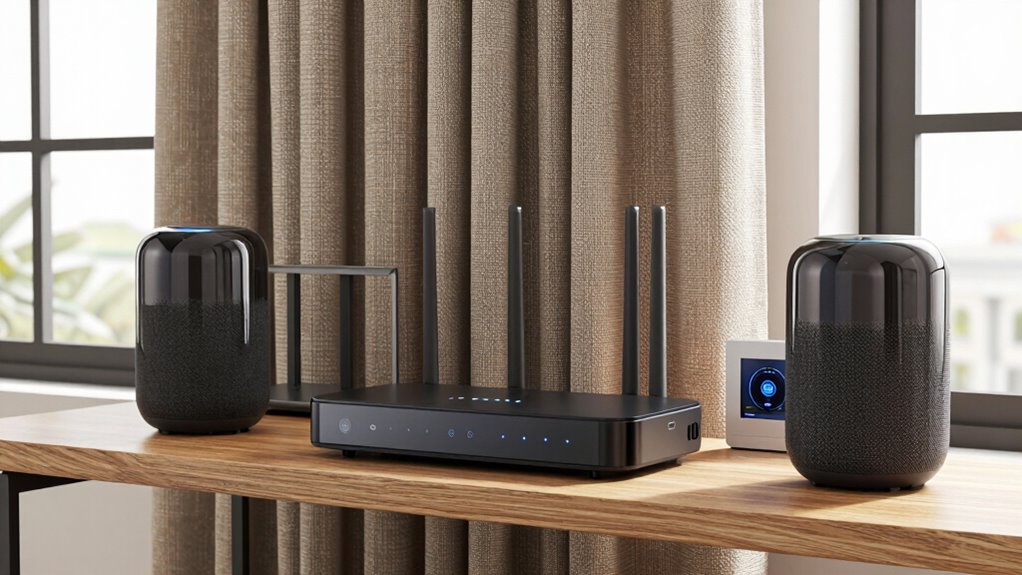
To minimize Wi-Fi interference and guarantee your smart devices work smoothly, it’s essential to place them strategically around your home. Proper device placement helps reduce interference and enhances signal strength. Keep your smart devices away from thick walls, metal objects, and other electronics like microwaves or cordless phones, which can disrupt Wi-Fi signals. Elevate devices off the floor and position them in open spaces to optimize coverage. Avoid placing multiple devices too close together, as this can cause interference mitigation issues. Instead, spread them out to create a more reliable network. Remember, a well-thought-out device placement ensures your smart devices stay connected and operate efficiently, reducing offline drops and improving overall performance.
Smart Home Tips for a Stable and Fast Wi-Fi Network

Once you’ve positioned your smart devices correctly, maintaining a stable and fast Wi-Fi network becomes much easier. To optimize your network, ensure your router supports current device compatibility standards like Wi-Fi 6, which improves speed and reduces lag. Regularly update your router’s firmware to enhance performance and security, protecting user privacy. To further boost stability, consider using a mesh network or additional access points to eliminate dead zones. Keep these tips in mind:
- Use dual-band or tri-band routers to separate device traffic
- Limit the number of devices connected simultaneously
- Secure your network with strong passwords and encryption
When to Call a Professional for Persistent Connectivity Problems

Persistent connectivity issues can be frustrating, especially when troubleshooting on your own doesn’t resolve the problem. If your smart devices continue dropping offline despite your efforts, it’s time to seek professional assistance. Persistent connectivity problems may stem from complex network issues or faulty hardware that require expert diagnosis and repair. Calling a professional ensures you get tailored solutions that address the root cause, rather than just temporary fixes. Professional assistance can help optimize your network setup, replace malfunctioning equipment, or identify interference sources you might not recognize. Don’t ignore ongoing connectivity issues; persistent connectivity problems can escalate or damage your devices over time. When troubleshooting no longer works, reaching out to an expert guarantees a more reliable, long-term solution.
Frequently Asked Questions
Can Different Smart Devices Affect Each Other’s Wi-Fi Connection?
Yes, different smart devices can affect each other’s Wi-Fi connection. Interference sources like overlapping channels or electronic devices can disrupt signals, causing drops. Also, device compatibility issues might lead to network conflicts. To minimize this, make certain your devices support the same Wi-Fi standards, update firmware regularly, and place them away from potential interference sources. This helps stabilize your network and keeps all devices connected smoothly.
How Does Weather Impact My Smart Home Device Connectivity?
Weather patterns can greatly impact your smart home device connectivity by causing signal interference. Rain, snow, and fog weaken Wi-Fi signals, making it harder for your devices to stay connected. Strong winds can also disrupt signals by shifting antennas or cables. To stabilize your devices, make sure your router is well-positioned, and consider using a mesh network to minimize weather-related disruptions and maintain a reliable connection indoors.
Are There Specific Settings to Optimize Smart Device Stability?
Did you know that optimizing your Wi-Fi network can improve device stability by 50%? To do this, adjust settings like channel selection and bandwidth management for better network optimization. Also, consider device placement—keep your smart devices close to the router and avoid obstructions. These simple steps help prevent drop-offs, ensuring your smart home stays connected and responsive. Take control now for a more reliable smart home experience.
What’s the Typical Lifespan of a Smart Device Before Connectivity Issues Arise?
Smart devices usually have a lifespan of around 3 to 5 years before connectivity issues might start to arise. Over time, device longevity can be affected by factors like hardware wear, firmware updates, and network stability. To mitigate lifespan concerns, regularly update your device firmware, ensure your Wi-Fi is stable, and replace devices when they become outdated or frequently disconnect. Staying proactive helps maintain reliable connectivity longer.
How Do I Know if My Router’s Firmware Needs Updating?
You might notice your router slowing down or losing connection, signaling it’s time for firmware updates. To check if your router’s firmware needs updating, log into your router’s admin panel and look for a firmware or software section; it often shows the current version. Staying on top of router maintenance guarantees your firmware is current, preventing connectivity issues and keeping your smart devices stable and secure. Don’t wait—regular updates boost performance.
Conclusion
Did you know that over 40% of smart device issues stem from Wi-Fi interference? Staying proactive by checking your network, updating devices, and placing them correctly can drastically improve your connectivity. If problems persist, don’t hesitate to contact a professional. A stable Wi-Fi ensures your smart home runs smoothly and efficiently, saving you time and frustration. Take these steps now to keep your devices online and your smart home truly smart.