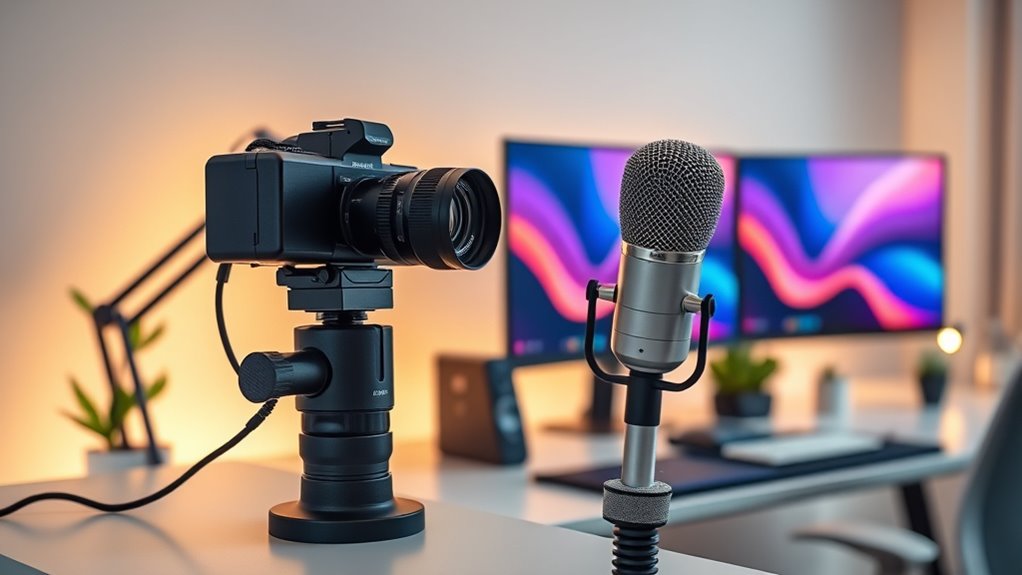
For a professional home office setup, position your camera at eye level using a stable surface or tripod for steady shots, and make sure it’s clean for sharp video. Choose a good mic, like a USB or XLR, to improve audio clarity, and consider soundproofing your space with foam panels or curtains to block noise. Use natural light whenever possible, or adjustable LED lights to illuminate your face evenly and reduce shadows. Keep your background clutter-free for a polished look, and if you keep exploring, you’ll find even more tips to perfect your setup.
Key Takeaways
- Position your camera at eye level on a stable surface or tripod for better eye contact and framing.
- Use quality microphones, such as USB or XLR, to ensure clear audio and reduce background noise.
- Optimize lighting with natural light or adjustable LED lights to evenly illuminate your face without harsh shadows.
- Choose high-resolution virtual backgrounds that match your environment for a polished appearance.
- Keep your equipment clean, check framing regularly, and eliminate clutter for a professional, distraction-free setup.
Setting up an efficient home office starts with choosing the right technology. Your camera, microphone, and lighting are vital for clear communication and a professional appearance during virtual meetings. To create a polished look, consider using a virtual background that matches your work environment. This feature allows you to hide clutter or distractions behind you, giving your workspace a cleaner, more organized appearance. When selecting a virtual background, ensure it’s high quality and doesn’t cause distraction or lag during calls. Pairing this with good lighting helps you look your best and makes your virtual background more seamless, avoiding awkward cutouts or shadows.
Optimizing your home office with quality tech and virtual backgrounds enhances professionalism and reduces distractions during calls.
Speaking of sound, investing in a quality microphone can markedly improve your audio clarity. Built-in laptop microphones often pick up background noise, making conversations less clear. A dedicated mic, whether USB or XLR, filters out unwanted sounds and captures your voice more accurately. This is especially important if you need to participate in long meetings or record content. To further enhance your audio environment, use soundproofing materials in your home office. These can include foam panels, curtains, or weather stripping around doors and windows. Soundproofing minimizes echo and external noise, ensuring your voice comes through crisp and clear.
Lighting plays a vital role in your video quality. Natural light is ideal, but if that’s limited, invest in adjustable LED lights. Position them to illuminate your face evenly without creating harsh shadows. Proper lighting not only improves your visibility but also reduces the strain on your eyes during extended work sessions. When combined with a clean, clutter-free background—possibly enhanced with a virtual background—you create a professional appearance that commands respect and attention. Additionally, understanding the importance of contrast ratio can help you optimize your camera’s image quality, making your video feed appear sharper and more vibrant.
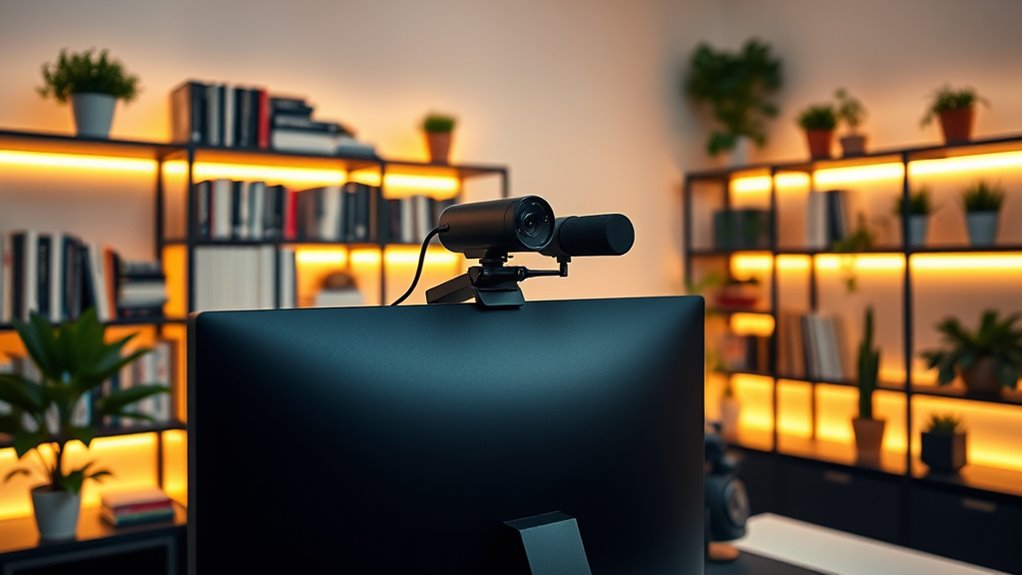
Your camera setup should be at eye level to establish good eye contact with colleagues and clients. Use a tripod or a stable surface to prevent shaky footage. If you’re working in a small space, a wide-angle lens can capture more of your background, making your workspace appear more inviting. Remember to keep your camera clean and check the framing regularly to ensure you’re centered and well-lit.
Frequently Asked Questions
What’s the Best Budget-Friendly Camera for Home Office Use?
You should consider the Logitech C920 or C350 as the best budget camera options for your home office. These affordable video gear choices deliver sharp video quality without breaking the bank. They’re easy to set up and work well with most computers. If you want a reliable, cost-effective camera for video calls and meetings, these models give you great value and clear visuals, making your workspace look professional.
How Do I Improve My Microphone’s Sound Quality?
Want clearer audio during your calls? You can improve your microphone’s sound quality by adjusting its placement—keep it close and at mouth level for ideal audio clarity. Use a pop filter to reduce unwanted noise, and consider upgrading to a USB condenser mic if possible. Also, check your environment for background noise, and use noise-canceling features or software to enhance overall sound quality.
Which Lighting Setup Reduces Glare and Eye Strain?
To reduce glare and eye strain, you should use diffused lighting in your setup. Position soft, indirect light sources like lamps with lampshades or LED panels with diffusers. This creates even illumination, minimizing harsh shadows and glare on your screen. Adjust the lighting angle so it’s not directly facing your eyes or the screen. Consistent, diffused lighting helps your eyes stay comfortable during long work sessions.
How Do I Set up Multi-Camera Angles Efficiently?
To set up multi-camera angles efficiently, focus on camera placement strategies like positioning cameras at different heights and angles for variety. Use multi-camera switching software to seamlessly toggle between shots, ensuring smooth shifts. Keep your cameras within the same lighting conditions to maintain consistency. Practice switching angles during rehearsals to improve flow, and label each camera feed for quick access during live sessions. This setup boosts professionalism and engagement.
What Are Common Troubleshooting Tips for Home Office Tech?
To troubleshoot your home office tech, start by checking your internet connectivity to guarantee a stable connection, especially for video calls. Restart your modem and router if needed. Also, verify your ergonomic accessories, like adjustable chairs and monitor stands, to prevent discomfort that can affect focus. Keep your software updated and test your camera and mic regularly. These steps help maintain smooth communication and a comfortable workspace.
Conclusion
By investing in the right camera, mic, and lighting, you create a workspace that’s professional, polished, and productive. When your tools are clear, your sound is sharp, and your lighting is balanced, you communicate confidently, work efficiently, and stand out in every meeting. With the right setup, you’re not just working from home—you’re working smarter, appearing more confident, and connecting more effectively. Equip yourself well, and watch your home office transform into a space of success.