
To improve Wi-Fi signal through walls, place your router in a central, elevated spot away from thick walls and interference from electronics. Use extenders or mesh systems to broaden coverage and consider upgrading to higher-gain antennas for better focus. Switch to less congested Wi-Fi channels and reduce physical barriers like furniture. Powerline adapters can help access difficult areas, and proper settings optimize performance. Keep exploring to discover more tips for a stronger, more reliable network.
Key Takeaways
- Place your router centrally and elevate it to reduce physical obstructions.
- Use high-gain antennas to focus signal strength through walls effectively.
- Install Wi-Fi extenders or mesh systems to bypass thick walls and expand coverage.
- Switch to less congested Wi-Fi channels to minimize interference and improve signal clarity.
- Consider powerline adapters to transmit network signals through electrical wiring, avoiding wall interference.

TP-Link AC1200 WiFi Extender – 1.2Gbps Home Signal Booster, Dual Band 5GHz/2.4GHz, Up to 1600 Sq.ft and 32 Devices, EasyMesh Compatible, One Ethernet Port (RE315)
𝐒𝐭𝐫𝐨𝐧𝐠𝐞𝐫 𝐖𝐢-𝐅𝐢 𝐢𝐧 𝐄𝐯𝐞𝐫𝐲 𝐂𝐨𝐫𝐧𝐞𝐫 – Enjoy extended coverage with strong performance powered by Adaptive Path Selection and…
As an affiliate, we earn on qualifying purchases.
As an affiliate, we earn on qualifying purchases.
Position Your Router Strategically
To maximize your Wi-Fi signal through walls, you need to position your router strategically. Proper router placement plays a vital role in reducing signal interference and ensuring a stronger connection. Place your router in a central location, ideally elevated on a shelf or mounted on a wall, to distribute the signal evenly. Avoid hiding it in corners, cabinets, or behind large objects, as these can block or weaken the signal. Keep it away from electronic devices like microwaves or cordless phones that cause interference. By choosing an ideal spot, you minimize signal interference and improve overall coverage. Additionally, understanding the role of interference in signal degradation can help you make more informed placement decisions. Remember, a well-placed router is your first step toward better Wi-Fi performance through walls.

Stemedu 2PCS 12dBi Dual Band WiFi Antenna 2.4GHz 5.8GHz SMA Male Wi-Fi Antennas High Gain Universal for Wireless Network Card Security IP Camera WiFi Router Hotspot Desktop PC Repeater
Dual band wifi antenna: 2.4GHz (2400-2500MHZ ) / 5.8GHz (4900-5900MHz)
As an affiliate, we earn on qualifying purchases.
As an affiliate, we earn on qualifying purchases.
Minimize Physical Obstructions
Once you’ve positioned your router wisely, the next step is to reduce physical barriers that can block or weaken the Wi-Fi signal. Thick walls or dense building materials like concrete and brick considerably impede signal strength. To minimize these obstructions, consider the following table:
| Building Material | Effect on Wi-Fi Signal |
|---|---|
| Drywall | Slight interference |
| Brick/Concrete | Major signal reduction |
| Metal | Severe signal blockage |
Wall thickness also matters; thicker walls weaken signals more. Keep your router away from dense materials and avoid placing it behind large furniture or appliances. By reducing these physical obstructions, you enhance Wi-Fi coverage and ensure a more reliable connection throughout your space. Additionally, understanding the building materials in your walls can help you plan the optimal placement for your router.

TP-Link Deco X55 AX3000 WiFi 6 Mesh System – Covers up to 6500 Sq.Ft, Replaces Wireless Router and Extender, 3 Gigabit Ports per Unit, Supports Ethernet Backhaul, Deco X55(3-Pack)
Wi-Fi 6 Mesh Wi-Fi – Next-gen Wi-Fi 6 AX3000 whole home mesh system to eliminate weak Wi-Fi for…
As an affiliate, we earn on qualifying purchases.
As an affiliate, we earn on qualifying purchases.
Use Wi-Fi Extenders or Repeaters
If your Wi-Fi signal struggles to reach certain areas, using a Wi-Fi extender or repeater can considerably improve coverage. These devices amplify your existing signal, helping eliminate dead zones caused by walls or distance. When setting up extenders, ensure they’re placed halfway between your router and the weak spot for peak performance. Keep in mind that adding repeaters may slightly reduce network speed, so choosing high-quality models helps maintain performance. Additionally, secure your extended network with strong wireless security settings to prevent unauthorized access. This also simplifies network troubleshooting, as you can identify and address issues more efficiently when your devices connect through a single, well-managed network. Using extenders is a practical step toward a more reliable, secure Wi-Fi signal throughout your home. Integration of AI in mobile devices is projected to redefine user interactions, which could further enhance smart home connectivity and Wi-Fi management.
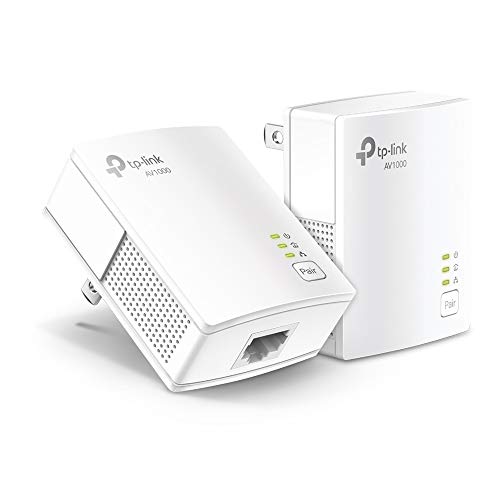
TP-Link AV1000 Powerline Ethernet Adapter KIT – Gigabit Port, Plug Pair &Play, Ethernet Over Power, Nano Size, Power Saving Mode, Network Adapter, Free Expert Help (TL-PA7017 KIT)
𝐄𝐱𝐭𝐞𝐧𝐝 𝐘𝐨𝐮𝐫 𝐄𝐭𝐡𝐞𝐫𝐧𝐞𝐭 𝐂𝐨𝐧𝐧𝐞𝐜𝐭𝐢𝐨𝐧 𝐓𝐡𝐫𝐨𝐮𝐠𝐡 𝐘𝐨𝐮𝐫 𝐄𝐥𝐞𝐜𝐭𝐫𝐢𝐜𝐚𝐥 𝐒𝐲𝐬𝐭𝐞𝐦 – This device is meant for individuals that are not…
As an affiliate, we earn on qualifying purchases.
As an affiliate, we earn on qualifying purchases.
Switch to a Less Congested Wi-Fi Channel

You can improve your Wi-Fi performance by finding a less crowded channel. Use your router’s settings or apps to identify which channels are congested. Then, select the most suitable frequency to reduce interference and boost your signal. Engaging in dynamic communication exercises can also help troubleshoot connectivity issues with household members, ensuring a smoother online experience.
Identify Congested Channels
To improve your Wi-Fi performance through walls, it’s essential to identify and switch to a less congested channel. You’ll want to check for channel interference caused by nearby networks, which often leads to signal overlap. Using a Wi-Fi analyzer app, you can scan your environment to see which channels are overcrowded. This helps you pinpoint the best options with minimal interference. Additionally, selecting channels with less overlap can help manage signal interference more effectively. Consider these tips: – Look for channels with the fewest nearby networks to reduce signal overlap. – Avoid channels showing high traffic to prevent congestion. – Use tools that visualize channel activity, making it easier to choose a clear path.
Select Optimal Frequency
After identifying which channels are crowded, the next step is to select the most suitable frequency for your Wi-Fi signal. Different frequency bands, such as 2.4 GHz and 5 GHz, offer varying levels of congestion and performance. The 2.4 GHz band is more prone to interference sources like microwaves and Bluetooth devices, which can cause signal disruptions. Switching to a less congested channel within these bands can markedly improve your connection. Use tools or router settings to scan for channels with fewer interference sources. Choosing a clearer frequency band minimizes signal overlap and reduces latency. By selecting an ideal frequency, you enhance your Wi-Fi’s stability and speed, especially through walls and obstacles, resulting in a more reliable internet experience.
Upgrade to a Higher-Gain Antenna
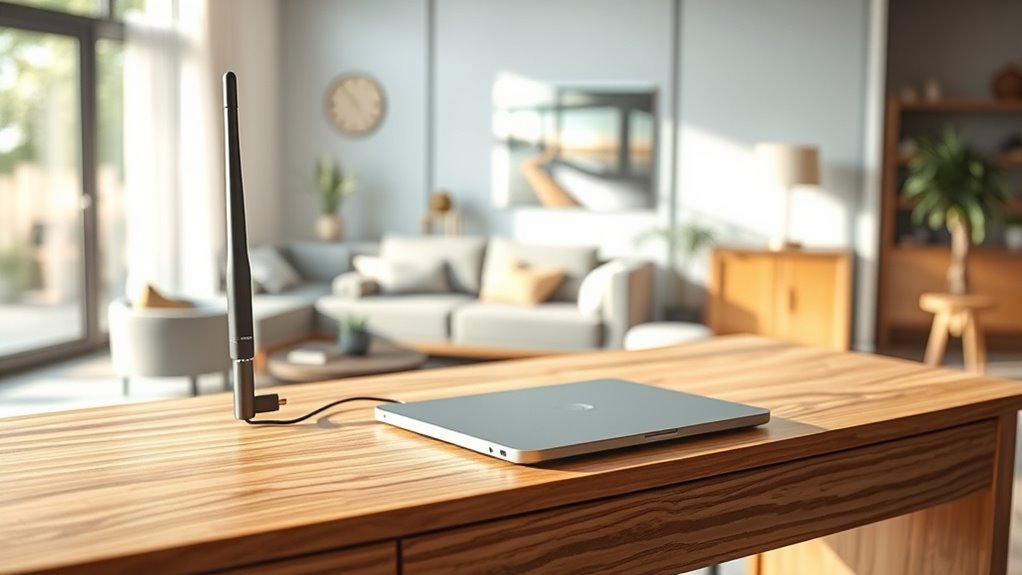
Upgrading to a higher-gain antenna can substantially enhance your Wi-Fi signal’s ability to penetrate walls. Higher antenna gain increases the strength and focus of your signal, improving coverage and reliability. By choosing an antenna with a better signal direction, you can direct more signal power toward areas with weak reception. This targeted approach minimizes interference and boosts overall performance. When selecting a higher-gain antenna, consider its compatibility and placement to maximize benefits. Remember, a more focused signal reduces dead zones and helps walls and obstacles block less of your Wi-Fi. Upgrading can be an affordable, straightforward way to improve connectivity without replacing your entire router. It’s an effective step toward a stronger, more reliable Wi-Fi experience throughout your home or office. Incorporating Kia Tuning concepts like performance upgrades can inspire innovative ways to optimize your setup.
Adjust Router Settings for Better Performance

Adjusting your router’s settings can considerably boost your Wi-Fi performance through walls. First, verify your network security is strong, preventing interference from unauthorized devices that can slow your connection. Change your Wi-Fi channel to a less congested one; using tools like Wi-Fi analyzers helps identify the best option. Keep your firmware up to date, as manufacturers release updates that improve performance and fix security vulnerabilities. Adjust the transmit power settings if available, increasing signal strength without causing interference. Disable unused features like WPS or QoS if they aren’t needed, to reduce unnecessary network load. Additionally, selecting the right antenna configuration can enhance signal strength and coverage. These tweaks help optimize your router’s performance, making your Wi-Fi signal more robust and reliable through walls.
Incorporate Powerline Adapters
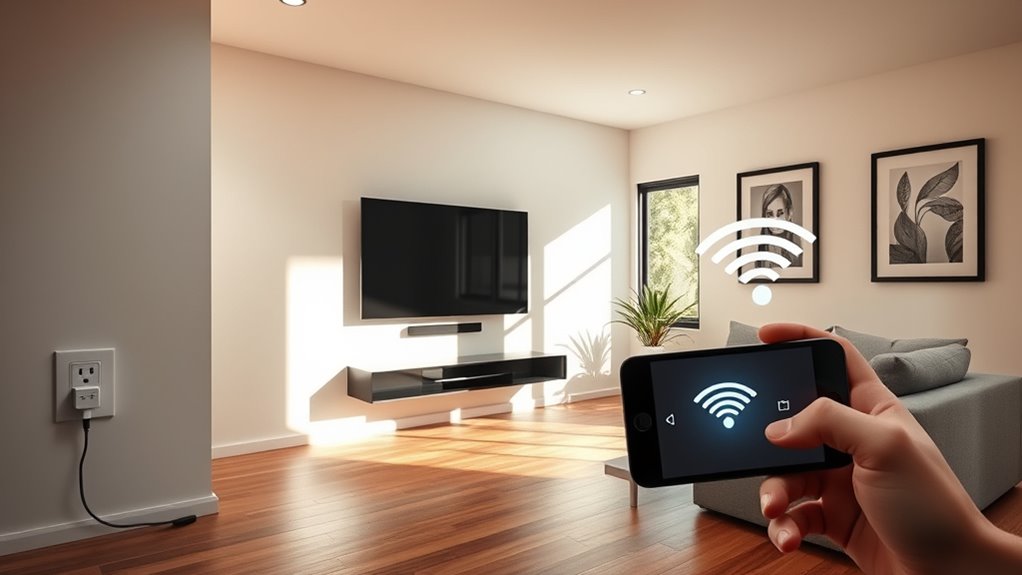
Powerline adapters can substantially enhance Wi-Fi signals that struggle to penetrate walls by creating a wired connection through your home’s electrical wiring. They effectively extend your network bridging capabilities, providing a stable connection in hard-to-reach areas. Simply plug a powerline adapter into an outlet near your router and connect it with an Ethernet cable. Then, place another adapter in the room where you need better internet. This setup uses existing electrical wiring to carry network signals, reducing interference common with wireless signals. Powerline adapters are especially useful if Wi-Fi signals are weak behind thick walls or in distant rooms. They offer a simple, reliable way to improve coverage without adding extra Wi-Fi access points. User-friendly interfaces enhance the setup process and make it easier to manage your network.
Consider Mesh Network Systems
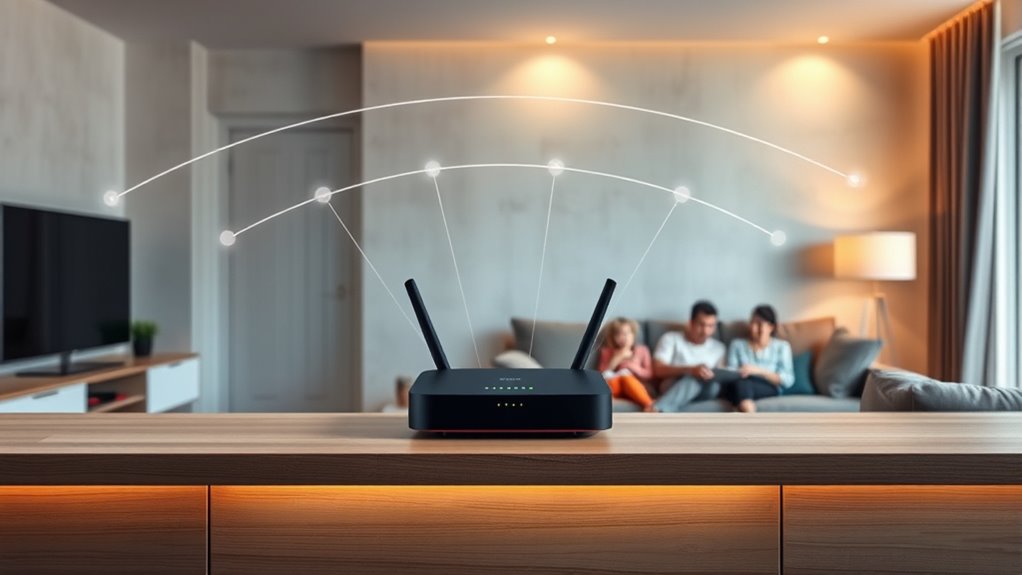
Mesh network systems use multiple access points to extend your Wi-Fi coverage seamlessly. With these setups, your devices can switch between access points without dropping the connection. This guarantees a consistent signal even through walls and across larger areas. Additionally, mesh networks often incorporate antimicrobial properties to help maintain a cleaner network environment.
Multiple Access Points
Have you ever wondered how to eliminate Wi-Fi dead zones caused by thick walls? Multiple access points, like mesh network systems, help extend coverage seamlessly. By placing several access points around your home, you create a unified network that reduces signal loss. This setup improves overall wireless security since each node can be configured with strong encryption. Plus, keeping your router firmware up to date ensures peak performance and security across all access points. Proper placement of access points is key to maximizing coverage and minimizing interference. Implementing multiple access points ensures you get reliable Wi-Fi everywhere, even through tough walls, without sacrificing security or performance.
Seamless Roaming
To enjoy uninterrupted Wi-Fi as you move around your home, seamless roaming is essential. With mesh network systems, your devices automatically connect to the strongest signal as you walk from room to room, avoiding dropped connections. For smooth operation, guarantee your devices are compatible with the mesh system, and keep firmware updates current. These updates often improve device compatibility and enhance roaming capabilities.
| Feature | Benefit |
|---|---|
| Device Compatibility | Ensures all your devices connect seamlessly |
| Firmware Updates | Improve roaming and security |
| Signal Handover | Maintains stable connection during movement |
Frequently Asked Questions
Can Wall Materials Significantly Affect Wi-Fi Signal Strength?
Wall materials can markedly affect your Wi-Fi signal strength. Dense wall insulation, like concrete or brick, can block or weaken signals, causing interference that slows your connection. Conversely, walls with less insulation or made of lighter materials like drywall allow better signal passage. To improve your Wi-Fi, consider placing your router centrally, away from thick walls, and reducing signal interference from other electronics.
How Do I Identify the Best Location for My Router?
You should focus on router placement to optimize your Wi-Fi signal. Place your router in a central, open spot away from thick walls and electronic interference. Elevate it to avoid obstructions and keep it off the floor. Avoid placing it near metal objects or appliances that can block signals. By carefully choosing the best location, you enhance signal optimization, ensuring stronger, more reliable Wi-Fi throughout your space.
Are There Specific Wall Types That Block Wi-Fi Signals More?
You might think all walls block Wi-Fi equally, but wall density and material conductivity tell a different story. Denser walls like concrete or brick considerably reduce signal strength, while lighter materials like drywall or wood transmit signals more easily. It’s tempting to ignore this, but understanding these differences helps you position your router smarter. So, yes, certain wall types do block Wi-Fi signals more, and knowing this can boost your connection.
Will Upgrading My Internet Plan Improve Wi-Fi Through Walls?
Upgrading your internet plan can help, especially if it includes fiber optics, which offer faster speeds and better stability. However, it might not considerably improve Wi-Fi signals through walls. To boost your connection, consider signal boosters or mesh networks designed to extend coverage. These tools work alongside your upgraded plan, helping your Wi-Fi reach through walls more effectively and providing a stronger, more reliable connection throughout your space.
How Often Should I Update or Replace My Wi-Fi Equipment?
You should update or replace your Wi-Fi equipment every 3-5 years to guarantee peak performance. Regular router maintenance, like firmware updates, helps keep your device secure and efficient. Additionally, consider device compatibility; newer routers support the latest standards, providing faster speeds and better coverage. Upgrading periodically ensures your network stays reliable and ready for new devices, preventing slowdowns and connection issues over time.
Conclusion
By implementing these strategies, you can transform your Wi-Fi signal from a fragile whisper through walls into a steady, unwavering stream. Think of your network as a resilient bridge, gracefully spanning obstacles and reaching every corner of your home. With a few adjustments, you’ll turn your space into a seamless digital landscape, where signals flow freely like an unbroken river—powerful, persistent, and ready to support your every online need.